

What is screen mirroring and how do you set it up?
Screen mirroring, also known as screencasting, is a feature that allows you to project the screen of your phone, tablet, or laptop onto a larger screen, such as a TV or monitor. This can be useful for a variety of purposes, including sharing photos and videos with friends and family, giving presentations, or playing mobile games on a larger mirror screen.
Depending on your devices and the operating system they run on, there are several ways to set up screen mirroring. So it is necessary to understand how to screen mirror your devices.

|
Table of Contents[Hide]
|
Types of Screen Mirroring
There are two main versions of screen mirroring:
- Mirroring with an Android Phone
- Mirroring with an iPhone
There are some key differences between Android phone and iPhone screen mirroring. These differences can have an impact on how you screen mirror your devices.
Compatibility
Android phones are generally more compatible with a wider range of screen mirroring technologies and devices, including smart TVs, streaming devices, and wireless display adapters. iPhones, on the other hand, are generally more limited in their compatibility and may only work with specific types of devices, such as Apple TVs.
Connection methods
Android phones typically offer a variety of ways to connect to a screen mirroring device, including Wi-Fi Direct, Miracast, and Google Cast. iPhones, on the other hand, generally use Apple's proprietary AirPlay technology to connect to other devices.
User experience
The user experience of screen mirroring can vary greatly between Android phones and iPhones, with some users preferring the simplicity and reliability of AirPlay, while others prefer the flexibility and customization options offered by Android.
Screen Mirroring Methods
Depending on your devices and the operating system they run on, there are several ways to set up a mirror screen. Here are some of the most common methods:
Using a Smart TV
Many modern TVs come with a built-in Android screen mirroring feature that allows you to wirelessly connect your phone or tablet to the TV and display its mirrored screen. To do this, you'll need to make sure both your phone and TV are connected to the same Wi-Fi network, and then follow the TV manufacturer's instructions to enable screen mirroring.
Using a Streaming Device
If your mirror TV doesn't have built-in screen mirroring, you can use a streaming device like a Chromecast, Apple TV, or Amazon Fire Stick to achieve a similar effect. These devices plug into your mirror TV via an HDMI cable and allow you to stream content from your phone or tablet to the TV.
Using a Cable
You can also connect your phone or tablet to your mirror TV using a physical cable if both devices have the appropriate ports. For example, you can use an HDMI-to-HDMI cable to connect an Android phone to a TV, or a Lightning-to-HDMI adapter to connect an iPhone or iPad.
Using a Wireless Display Adapter
If your planned mirror TV doesn't have built-in screen mirroring or a streaming device, you can connect your phone or tablet to the mirror TV using a wireless display adapter. These adapters, available from various manufacturers, plug into the TV's HDMI port and create a wireless connection with your phone or tablet.
Benefits of Screen Mirroring
When you screen mirror, there are several benefits that you will enjoy. Here are some of them:
Sharing Content
One of the primary advantages of screen mirroring Android is the ability to share content with others on a larger display. This can be especially useful for sharing photos, videos, and other media with friends and family, as it allows everyone to view the content more effectively. Additionally, a mirror screen can help give presentations to a group, allowing you to display your presentation on a larger screen for all attendees to see.
Enhanced Viewing Experience
Watching content on a larger screen, such as a mirror TV or monitor, can provide a more immersive and enjoyable viewing experience. This is especially true for movies, TV shows, and other visual media, as the larger mirror screen size allows for more detailed and dynamic visuals.
By using screen mirroring to project your phone or tablet's screen onto a mirror TV or monitor, you can take advantage of this enhanced viewing experience and enjoy your content in a more dynamic and engaging way.
Increased Productivity
Screen mirroring Android is not only a valuable entertainment tool, but it can also boost productivity. By mirroring your device's screen onto a larger display, such as a monitor or a mirror TV, you can take advantage of the added mirror screen real estate to more efficiently complete tasks such as emailing, document editing, or browsing the web.
Gaming
Another benefit of screen mirroring is the ability to play mobile games on a larger mirror screen, which can be a more immersive and enjoyable experience. This can be especially useful for games with complex controls or graphics that may be more difficult to see on a small screen. By projecting your device's mirror screen onto a TV or monitor, you can take advantage of the larger mirror screen size to fully immerse yourself in the game.

How to Connect Your Phone to a TV
There are a number of steps you can take to learn how to screen mirror. These include:
Native Android Mirroring
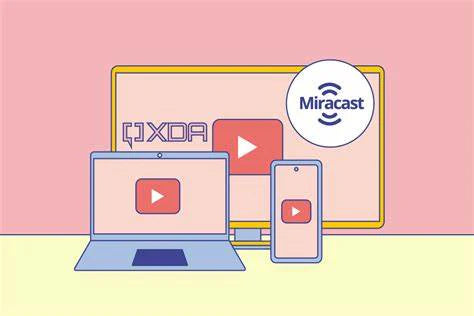
If your TV supports the Miracast wireless protocol, which is explicitly designed for mobile device mirroring, and you have Android version 5 or higher, you can use Android mirror casting to put your phone's display on the TV. To access your phone's quick settings menu, swipe down from the top of the screen.
Since various phone manufacturers give this feature different names, you might need to do some searching to find it. Smart View is what this feature is called on Samsung phones. Once you find it, click on it.
Once a screen of nearby devices loads, your TV should be there. Once you select your TV from the list, your phone should connect in a matter of seconds. If you want your phone to look like a TV, you should always keep it in landscape mode. To get the most out of the native screen mirroring feature, use a phone and TV from the same brand.
Mirroring with an App
There are various mirroring apps available on the Google Play Store that you can use to project your mobile device's display onto a larger mirror screen. When it comes to features and supported devices, casting apps vary widely. Most Android screen mirroring apps will work with external streaming boxes rather than the TV itself.
If you don't have a streaming device, you can still watch your favorite app's content as long as your TV is Miracast-enabled. If you plan to use a streamer, then using one that is compatible with your TV's external input is essential.
Among the streaming devices, Google's Chromecast has the most users and works best with the Google Home app, followed by Amazon's Fireline and Roku.
Casting with a Streaming Device
The streaming content choice is important if you have a device connected to your mirror TV for watching online videos. If you want to watch a movie or TV show, using the streamer is best instead of keeping your phone on and active the whole time. If your TV does not have Miracast, a streaming device is your only option for watching mobile content on a larger mirror screen.
Apps are available for every major streaming media player, including Chromecast, Fire TV, Roku, and Apple TV. Make sure your phone and the other device are connected to the same Wi-Fi network. Try a few different apps to find the one that works best with your gadgets.
The process is the same for all streaming devices. Start the app, play the content you want, and click the "Cast" button. After that, select the mirror TV, and your content should begin playing in a matter of seconds.

How to Connect Your Phone to the UPERFECT X 14 Pro Wireless Lapdock DeX Monitor Touchscreen
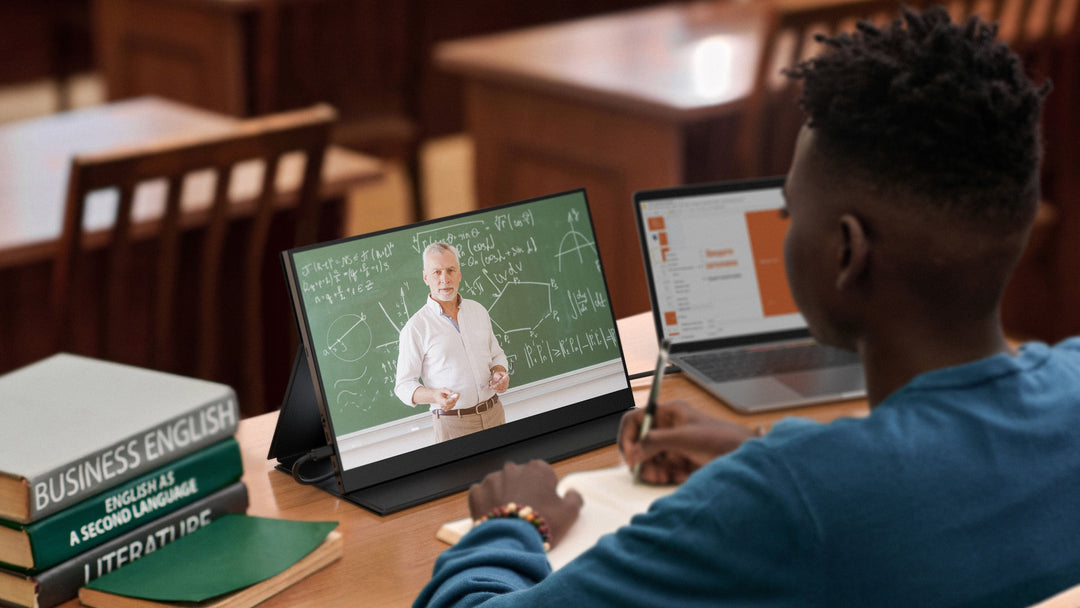
It is quite easy to know how to screen mirror your Android phone to the Uperfect X 14 Pro Lapdock. You do not necessarily need an Android phone that supports the USB-C Display Port Alt Mode for this. Thanks to the wireless connection, you can connect to the Lapdock without cable connections. Additionally, mirroring and projection can help you effectively enlarge your mobile phone's screen.
-
 UPERFECT X 14 Pro Wireless Lapdock Samsung Dex Touchscreen MonitorFrom €379.99
Screen size: 14 inch
Resolution: 1920 × 1080 (FHD)
Refresh rate: 60HzPanel Type: IPS
Display Ratio: 16:9
Viewing Angle: 178°
You can implement mirror mode and also set the desktop extension, letting the desktop mode extend the workspace on the screen to ensure enhanced multitasking and higher work efficiency. This means that you can continue to use your mobile phone for games while connected to the desktop, while the computer can carry out other activities. The neat thing about this function is that none of them affect each other. So you can use them at the same time.
In addition to the wireless connection, the Lapdock also has a rich interface with a stable transmission effect. If you use this connection method, you can also choose between the phone screen mirroring mode and the desktop mode. Two connectivity options guarantee more convenience.
The Lapdock is compatible with Samsung Dex, Motor Ready For and LG Screen+, and all smartphones support desktop mode.
Conclusion
Screen mirroring is a useful and convenient tool that allows you to share content from your phone, tablet, or laptop with others on a larger display, such as a TV or monitor. While screen mirroring Android offers a number of benefits you can enjoy when you know how to screen mirror, it also has its limitations, such as the need for additional equipment or cables, compatibility issues, and the potential for interference or latency issues. If you are not sure what monitor you need for your workspace, you should consider the Wireless monitor.


Leave a comment