

How to connect a smartphone to a portable monitor

Smartphones are more powerful than ever today, and a portable monitor can help you fully utilize the additional features of your smartphone. With the help of a portable monitor, you can quickly turn your smartphone into a main computer to work productively on a larger screen.
This guide explains how to connect your smartphone to a portable monitor in different ways. We'll walk you through the steps for a quick and easy setup.
Method 1: Connect your smartphone to a monitor with a cable
A USB-C cable is the most convenient way to connect a smartphone to a monitor. This method is straightforward, requires fewer cables, and is cost-effective. However, your smartphone must meet certain requirements.
Make sure you have a compatible smartphone.
To connect your smartphone to a portable monitor with a single USB-C cable, both devices need a USB-C port with DisplayPort Alt Mode (DP Alt Mode). Additionally, the USB-C cable must be Alt Mode-enabled to transmit video signals.
Smartphones with DisplayPort support include the Samsung Galaxy Note and Samsung Galaxy S series, the flagship models of the HTC U series, and the Huawei Mate and Huawei P series, among others. Some LG G and V series smartphones, as well as Razer and ROGH smartphones, also feature this capability. For more DP Alt Mode compatible devices, refer to this compatibility list.
Earlier iPhone models did not support USB-C cables. However, the iPhone 15, iPhone 15 Plus, and more modern models do, allowing you to connect them to displays via a USB-C cable.
Choose the right portable monitor
Portable monitors come in various sizes, resolutions, and color spaces. Portability also varies depending on the model. For a truly portable monitor, opt for one with an integrated battery. It should have at least 5000 mAh to allow for several hours of efficient work. A lithium-ion battery is ideal, as it is smaller, more robust, and more efficient.
Battery-powered monitors with a keyboard and trackpad, known as LapDocks, are a great help in everyday life. They function almost like a laptop with a good touchscreen. Popular models include UPERFECT X Pro and NexDock. Both work perfectly with Samsung Dex and other Android 10 desktop modes.
Here's a video showing an example of connecting with UPERFECT 15.6 X Pro:
Next, you should pay attention to compatibility. The portable monitor must have a DP-ALT compatible USB-C port. Also, there should be enough ports for a keyboard, mouse, or docking stations. Especially if you want to edit documents, these connectivity options are essential.
If you use the portable monitor on a desk near an electrical outlet, you should consider a model without a battery. The monitor should be ready for operation via the power connection.
How to connect your smartphone:
After checking the compatibility of both devices, set up your smartphone with the monitor:
- First, turn on the portable monitor. If it's not battery-powered, plug it into a wall outlet.
- Now, connect one end of the DP-ALT-enabled USB-C cable to the smartphone and the other end to the portable monitor's port.
- If your Android device is running OS 10 or higher, enable desktop mode in the settings. You can find it under "Developer Options."
- Enable screen mirroring if you're using older Android versions or your smartphone doesn't support desktop mode.
That's it! Now the smartphone interface should appear on the portable monitor. The interface may vary depending on the smartphone used.
Method 2: Connection with iOS/Android HDMI Adapter
Don't worry if your smartphone or desktop PC supports DP-ALT mode. Even without desktop mode, you can mirror your smartphone screen to the portable monitor. All you need is an HDMI adapter for iOS/Android. Let's see how to connect your smartphone to a portable monitor using the adapter.
How to connect the monitor:
- Plug the monitor into a wall outlet if it's not battery-powered.
- Connect your iPhone or Android smartphone to the monitor using the iOS/Android 3-in-1 adapter.
- Power the adapter via a USB port.
- Scan the QR code for device mapping on Android devices. (iPhones can connect directly to the monitor.)
- You should now see the smartphone display on the monitor screen.
For Android devices, in addition to scanning the QR code and downloading the mirroring software, you may also need to perform the following steps to ensure smooth screen mirroring:
- If Android automatically asks for "Use USB for" transfer settings, select "Transfer files."

- Wait for the monitor to respond. If the connection is successful, you can skip the following steps.
- If screen mirroring still doesn't work, click "Ensure normal mirroring settings" at the bottom of the mirroring software.

- Click on the three following settings and follow the instructions. The individual steps for this can be found below.
① In the first setting, enable performance mode.

② Click on the second setting, search for battery optimization, select mirroring, and then choose "Don't allow." Finally, click "OK."


③ Click on the third setting, skip the tutorial in sequence, then find your phone's "Battery usage details" and enable "Auto manage" and "Auto start."


Please note that this method only allows you to mirror the phone screen to the portable monitor and you cannot use the touch function. Set the phone to landscape mode to get the full-screen view on the portable monitor. Here is a video to help you connect.
iOS/Android 3-in-1 adapters are widely compatible, including the following devices and apps:
|
Category |
Subcategory |
Details |
|
Phones |
iPhone |
All models |
|
Android Phones |
All models |
|
|
Huawei |
All models |
|
|
Xiaomi |
All models |
|
|
Sony |
All models |
|
|
Samsung Galaxy Series |
Models |
Captivate Glide, Epic 4G Touch, Galaxy S II, etc. |
|
Tablets |
iOS Tablets |
All models |
|
Android Tablets |
All models |
|
|
Compatible Apps |
Video Calls/Conferences |
FaceTime, Skype |
|
Messaging and Social Media |
WhatsApp, Facebook, YouTube, Instagram, Twitter |
|
|
Other Apps |
IMDB, Microsoft Office |
|
|
Not Supported |
Paid Streaming Services |
NETFLIX, Amazon Prime Video, DIRECTV, Hulu etc. |
Please note that some paid streaming services like Netflix, DIRECTV, Hulu, etc., do not support the 3-in-1 adapter. Therefore, when using the 3-in-1 adapter, only compatible apps allow screen mirroring or display extension.

If you use an iPhone and don't want to switch to other smartphones, you can purchase a Lightning to HDMI adapter specifically for Apple devices. It does not require additional power.
- Plug the Lightning connector into your iPhone.
- Connect your monitor's HDMI cable to the adapter's HDMI port.
- Connect the other end of the HDMI cable to your portable monitor.
- Use the official charger to power the monitor.

Method 3: Connection via Wi-Fi Dongle
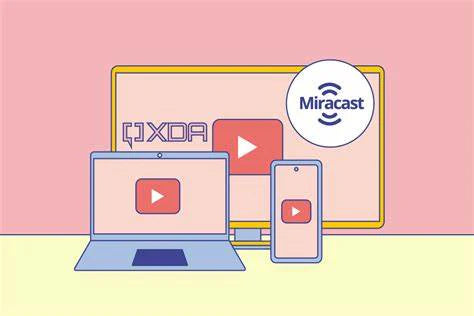
If you want to avoid cable clutter, a Wi-Fi dongle is the solution. It allows you to easily connect your smartphone to the portable monitor. Here's how to use the Wi-Fi dongle:
Connecting via Miracast on Android
- Set up the Wi-Fi dongle and turn it on after connecting it to the power supply (if required).
- Now connect the dongle to the portable monitor. Make sure the display is on or connected to the power supply.
- The dongle will set up a Wi-Fi network. You can find the network name and PIN on the portable monitor.
- Now turn on your Android smartphone and go to "Projection screen" (for Huawei) or "ALLShare Cast" (for Samsung); this may vary depending on the device.
- There you will find the name of the portable device. Tap on it, connect it, and start using it.
Connecting via Screen Mirroring on iPhone
- Follow the first three steps to set up the dongle on the portable monitor.
- In your iPhone's Control Center, look for available devices and open the "Screen Mirroring" option.
- Find the device and tap on it to establish the connection. Done! Your iPhone is now Miracast-enabled and can broadcast to the portable monitor.
Connecting Chromecast on Android/iPhone
- Download the Google Home app to your smartphone.
- Plug the Chromecast into the HDMI port of the portable monitor.
- Make sure the monitor's input source is set to the corresponding HDMI port.
- Turn on the Chromecast.
- Open the Google Home app.
- Select "Devices" and add "Google Nest" or a partner device.
- Enable Wi-Fi (make sure your mobile device and Chromecast are using the same Wi-Fi).
- Open your smartphone's Google Home app and tap on the device you want to stream to (the Chromecast).
- Tap on the Chromecast's name to connect.
- You can then stream content from supported apps by clicking the "Casting" icon.
Conclusion
As you can see above, there are various ways to connect a smartphone to a portable monitor. Of the three options described above, using a USB-C to USB-C cable is recommended as it is the most convenient and straightforward. If your device does not support DP Alt Mode, you can use an Android/iOS adapter for the connection. If you want a completely wireless experience, you can also use the wireless dongle or Bluetooth for setup.

Leave a comment