

UPERFECT Delta/Delta Lite Driver Installation Method
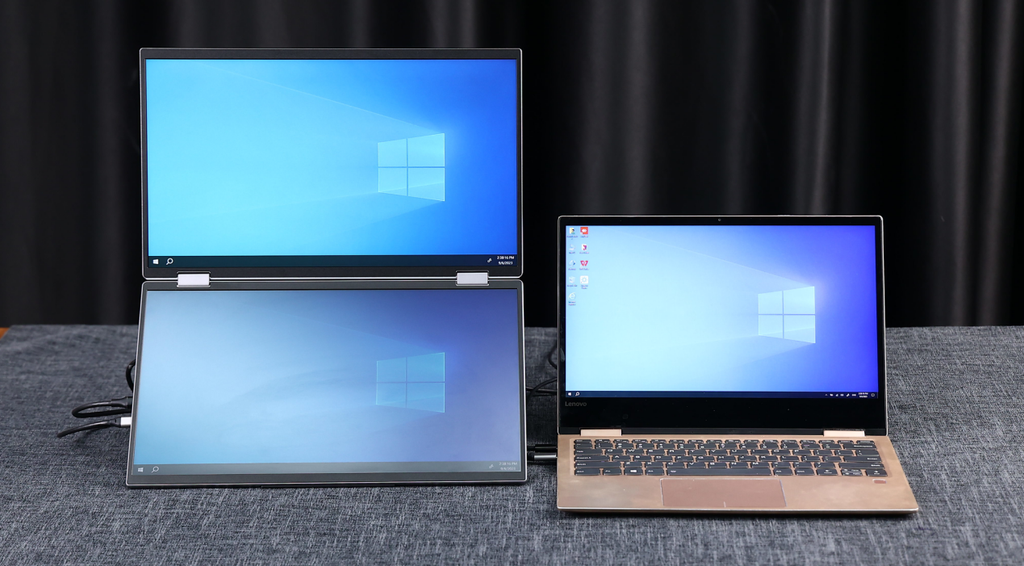
As the latest folding monitor, Delta has undoubtedly become the most eye-catching productivity partner on the market. Since the UPERFECT UStation Δ / Delta has two screens, it offers different methods of use compared to ordinary portable monitors. Driver installation is particularly important for those who already own a UPERFECT Δ / Delta folding screen. This article aims to describe how to install the driver.
|
Table of Contents [Hide]
|
Delta Driver Installation Method
1. First, please check whether your device has a full-featured Type-C port. If the device has a full-featured Type-C port, use a Type-C cable to connect the device and display, and the monitor must be connected to an external power supply.
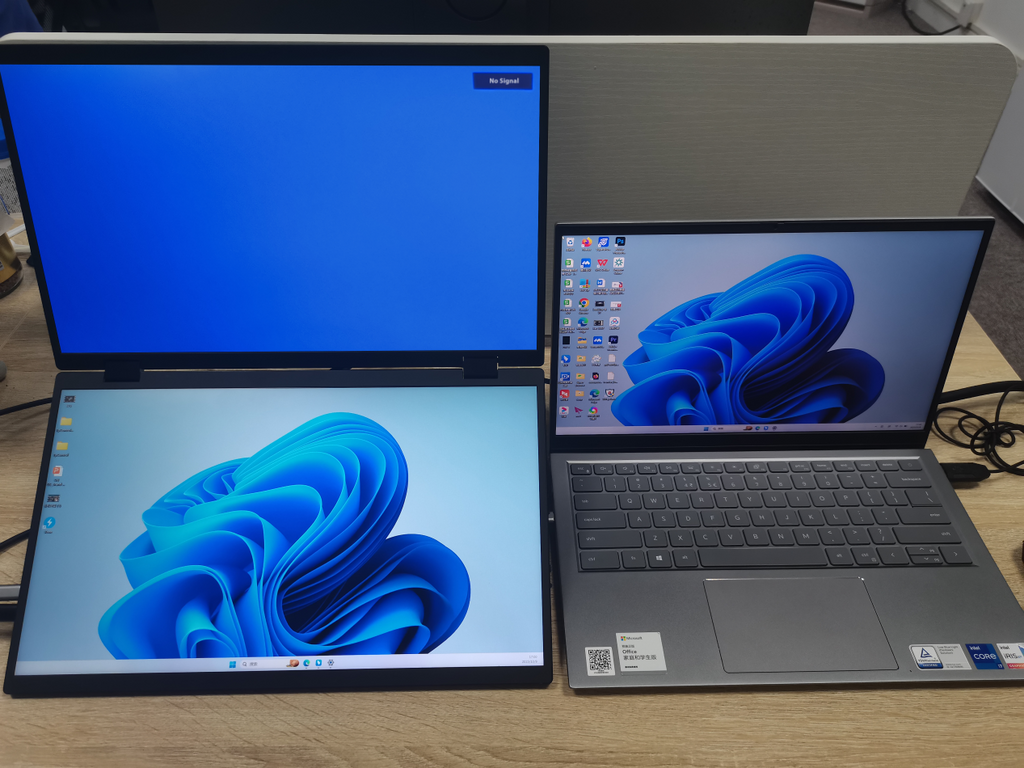
2. After connecting the monitor to the device, open the following web page and select a suitable driver based on your device's system address.
:https://www.synaptics.com/products/displaylink-graphics/downloads
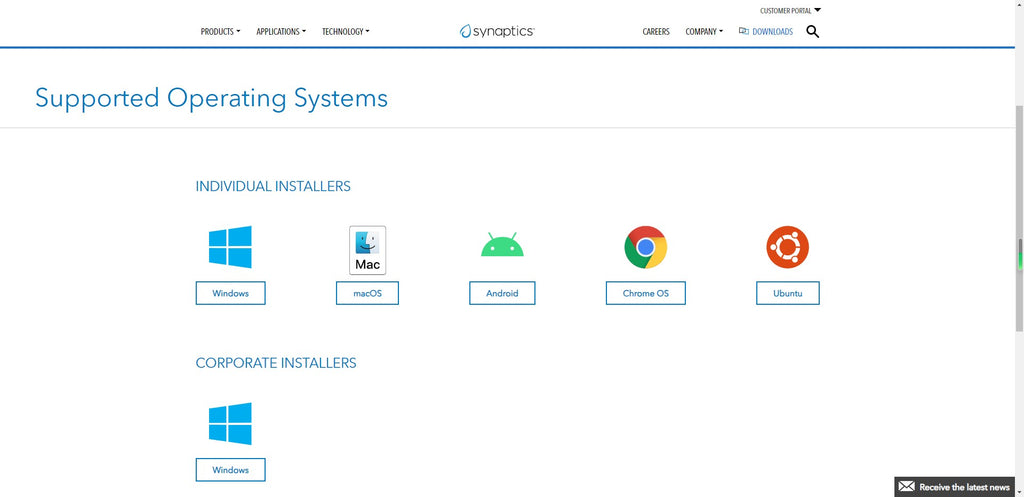
Example: If your device system is Windows, you can click "Windows" and then "Download".
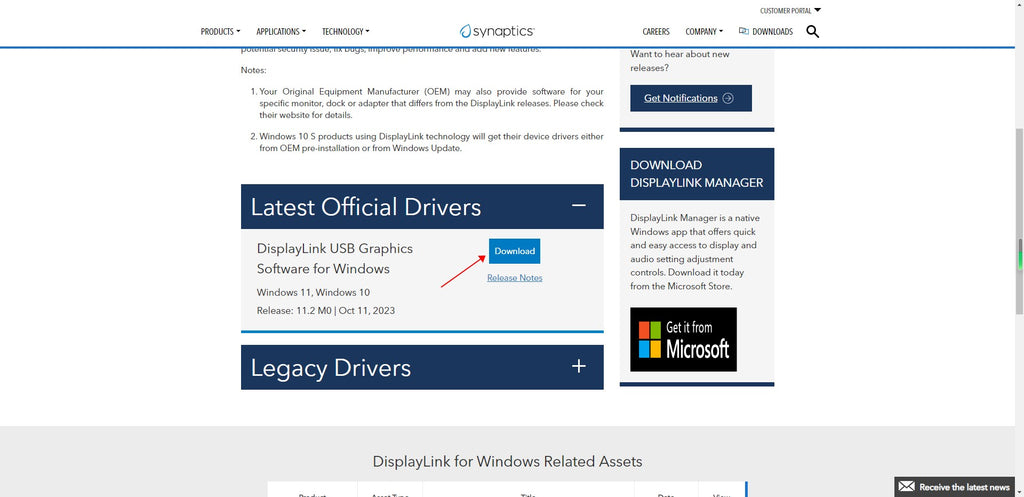
3. After downloading the driver, locate the driver file and install it.
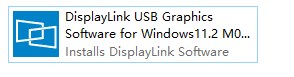
4. After installing the driver, please restart the device, then you can use both screens simultaneously. The driver only needs to be installed once; then the default display will be connected to the device, and both screens will turn on at the same time.
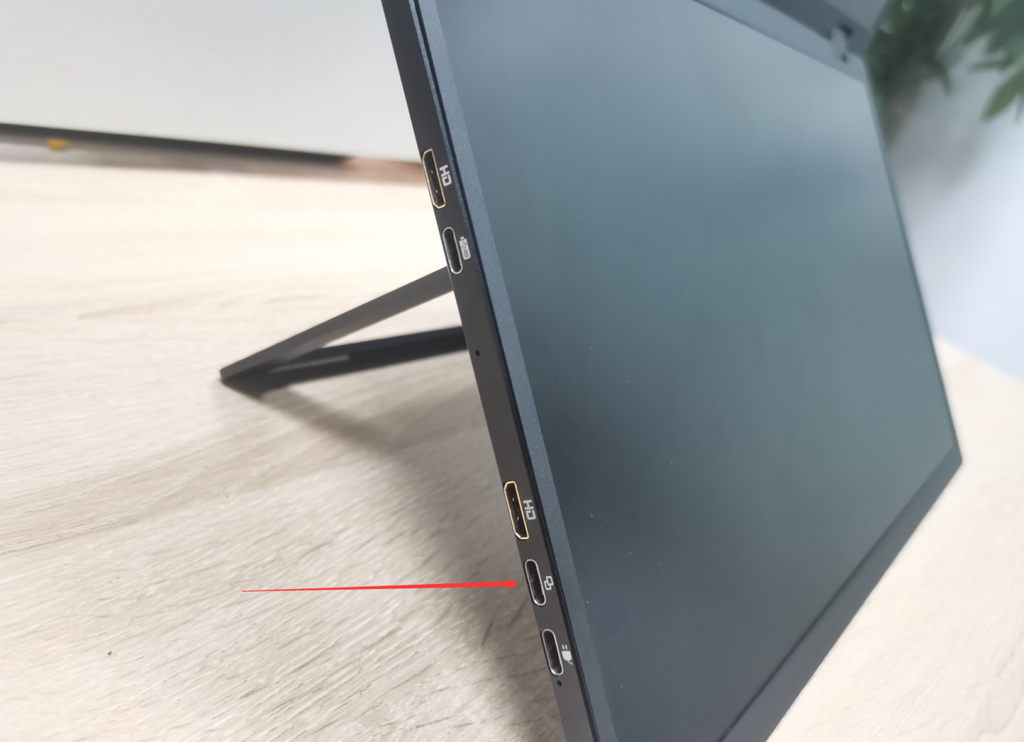
Note: Use a Type-C cable to connect two screens simultaneously. You need to select the second Type-C port on the left side of the monitor from bottom to top.
Delta Lite Driver Installation Method
1. First, please check whether your device has a full-featured Type-C port:
A: If the device has a full-featured Type-C port, use a Type-C cable to connect the device and display, and the monitor needs to be connected to an external power supply.
B: If the device does not have a full-featured Type-C port, please use an HDMI cable to connect the device, and then connect a Type-C to Type-A cable to the device. The monitor must be connected to an external power supply.
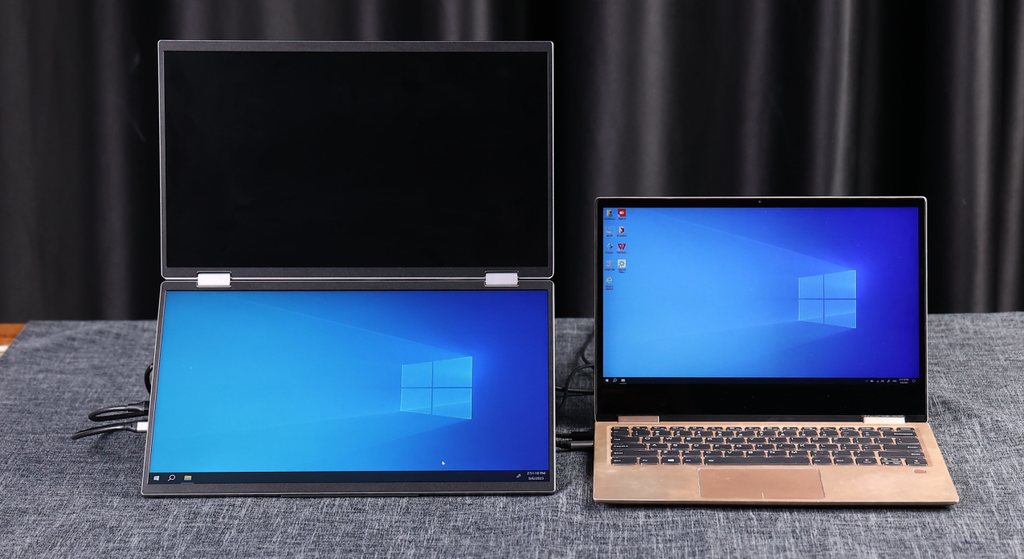
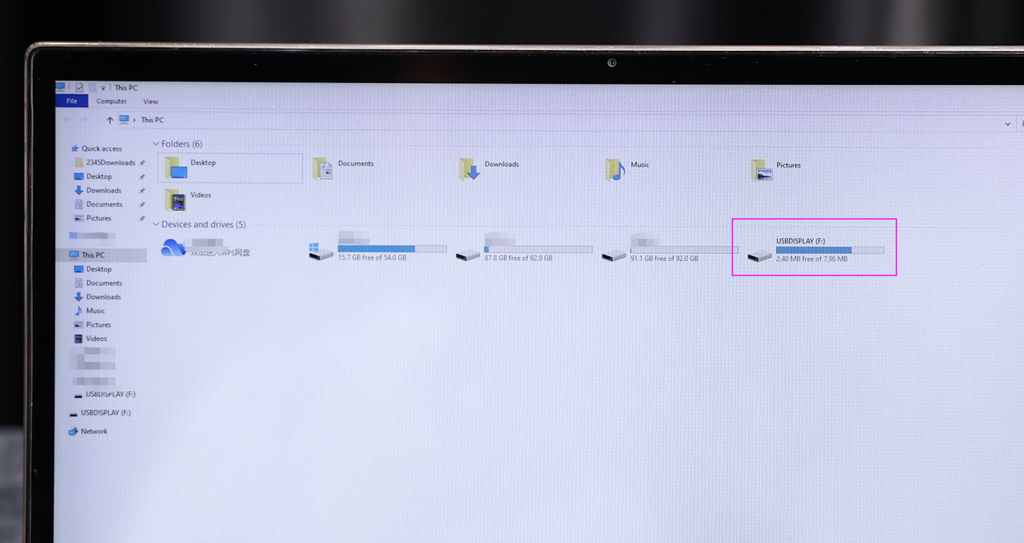
2. After connecting the device to the monitor, enter the computer disk and search for "USB DISPLAY".
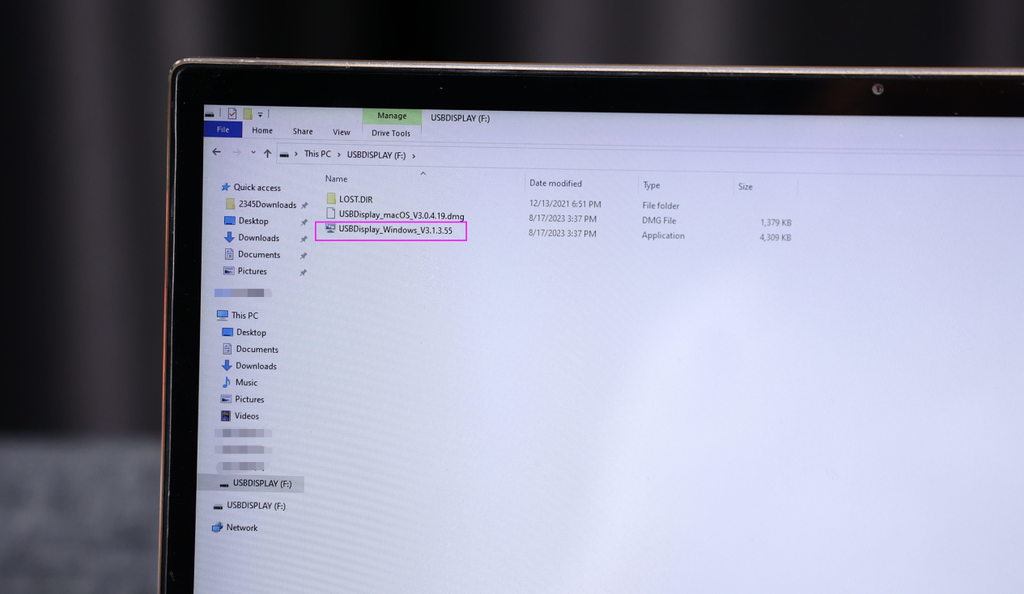
3. Open the "USB DISPLAY" disk, find "USBDisplay_Windows_V3.1.3.55" and then install this driver.
4. After installing the driver, please restart the device, then you can use both screens simultaneously. The driver only needs to be installed once; then the default display will be connected to the device, and both screens will turn on at the same time.

Leave a comment