

How do I set up a dual-screen laptop?
Laptop usage has significantly increased, and working all day on a small-screen laptop is not a pleasant experience. This is why companies provide employees with external dual-screen monitors to boost productivity. Such dual-screen laptops offer additional features for workplace productivity. Not only workplaces, but individual users have also found benefits from using a dual-screen laptop setup. For instance, businesspeople might need multi-screen laptops to host or manage high-level online meetings and conferences. Gamers might need a dual monitor laptop for the gaming experience, and graphic designers might need the crisp resolution of a dual monitor laptop setup.

Essentially, multiple laptop screens are powerful tools for boosting productivity and comfort. Multi-screen laptops provide an additional extension to perform tasks more easily, and therefore, many people need dual monitor laptops, or double screen laptops, or dual screen laptops and other devices that help to extend the laptop screen to create a dual screen setup. If you are not familiar with this dual-screen laptop framework, or are looking for a guide on how to set up the dual-screen laptop, let's look at some factors to consider before connecting a laptop.
Things to check before starting the connection
Nowadays, generally most laptop devices support dual-screen laptop functionality. However, you need to ensure that your device can add two external monitors for the laptop's dual-screen setup. The ability for dual-screen/double-screen laptop display depends on your operating system, driver capabilities, and graphics card. Windows 7, 8, 10, and Windows XP support the dual-monitor laptop feature; therefore, you just need to check your laptop's graphics card and driver capabilities to enable a dual-screen laptop.
Check your graphics card
The first thing you should check is whether your graphics cards support a dual-screen laptop. In general, every graphics card manufacturer provides at least two outputs; this means that the graphics card allows for the use of multiple laptop screens. But if you are unsure about the characteristics of the graphics card, you will need to visit your device manufacturer's website to look for your graphics card type and check if the specifications allow for a dual-monitor laptop framework. It helps you check if your graphics card supports dual-screen laptop or dual-monitor laptop functionality.
For example, if you are using the NVIDIA GeForce card , you can go to the official website and search for your graphics card model. Then click on the specification. You should look for terms like "Dual Monitor Laptop", "Dual-Screen Laptop", "Double Screen Laptop", "Laptop Dual Screen" or other terms referring to "Multiple" or "Multi"-screen display for laptops. In this case, you will find Yes or No in the "Multi-Monitor" column. If your graphics card does not support a dual-screen/dual-monitor laptop, you do not have to lose heart. You can buy a graphics card that supports Laptop Dual Screen and install it. So it is quite simple; first check your built-in graphics card; if it is not supported, you can buy and install a . Laptop Monitor Extender graphics card, and then you can set up your dual-monitor laptop.
Check the available ports on your laptop
These are the ports you need to check before using your laptop's dual-screen feature. Typically, every laptop or computer includes one or a combination of the following port types.
DisplayPort
In addition to video functionality for a dual-monitor laptop, the DisplayPort also provides an interface for protecting audio high-definition content.
VGA (Video Graphics Array)
It is very useful for setting up a dual-screen laptop. Very common, it is generally a color-coded connector with blue plastic & labels for the laptop's dual-screen display.
DVI (Digital Video Interface)
This supports setting up a dual-monitor laptop and is useful for video transmission. It is usually also a color-coded connector with white plastic & labels for the laptop's dual-screen display.
HDMI (High-Definition Multimedia Interface)
You can find this type of connector for the laptop's multi-screen function in many new laptops. In addition, it can connect all types of video devices for a dual-screen laptop and deliver sounds through the cables, improving the projection for a dual-screen laptop.
These are the standard ports you can find on laptops and computers, and they provide the functionality of dual-monitor laptops and support the framework of a dual-screen laptop display. You check the sides or the back of the laptops. Remember that you need to ensure that the monitor also contains the corresponding ports for the laptop's dual-screen display. Checking this can save you time and money. If your monitor's port does not match that of the laptop, you can buy converters that allow you to set up the laptop's dual-screen according to your needs.
How to connect the monitors if the ports do not match
Often, the ports on the laptop and monitor do not match. But it would be helpful if you did not worry, as you can still connect with the workaround and get your laptop on multiple screens. You can try one of the following methods to connect your portable monitor to laptop to ensure your laptop is set up with two screens and two monitors.
- You can buy and try a docking station, which works in various circumstances.
- A simple way to connect is to use an adapter, such as DVI or HDMI adapters. It works if you have different ports on your monitor and laptop.
- You can also use a switch splitter. This trick works if you have a single HDMI port in your laptop and if you need two HDMI ports.
How to set up a dual screen laptop?
If you are preparing for more productivity, you need to set up your dual-screen laptop. After making sure everything is ready, you can get your dual-screen laptop up and running with two monitors connected to your laptop. One tip is to connect the monitors while the computer is on, and Windows will recognize in 90% of cases when a new monitor is connected.
I have HDMI and VGA ports on my laptop, and my external monitors also have cables for HDMI and VGA connections. Follow these steps to set up your dual-monitor laptop.
Step 1: Connect the cable of your first external monitor to the correct video port of your laptop. Therefore, I attach the VGA cable of your first external monitor to the VGA port of the computer. This initializes the laptop's multi-screen display.
Step 2: Now connect the cable of the second monitor to the other correct port of your system. So I plug the HDMI cable of the second monitor into the HDMI port of the system.
Step 3: Now we need to make changes in the display settings. To do that:
- Right-click on the area on your desktop.
- If your operating system is Windows 10, click on display settings.
- If your operating system is Windows 7/8, click on screen resolution.
Step 4: You will see three displays with display modes 1, 2, and 3. This display 1 is your laptop monitor, and the other two displays are external displays.
Step 5: Click on display two and select the "Extend desktop to this display" option from the multiple displays and click Apply.
Step 6: Select display three and select the "Extend desktop to this display" option from the drop-down list of multiple displays and click Apply.
Step 7: The last step is to click OK to complete the process and apply the settings. This allows you to use three monitors with your laptop.
You have the option to drag & drop each display to rearrange them:
- The ability to change the screen resolution.
- Size of items.
- Orientation according to your preferences.
These are the simple steps to connect a portable monitor to laptop and use it to maximize the benefits. The multiple screens of the laptop increase productivity, and you do not have to be a tech-savvy person to connect multiple screens.
-
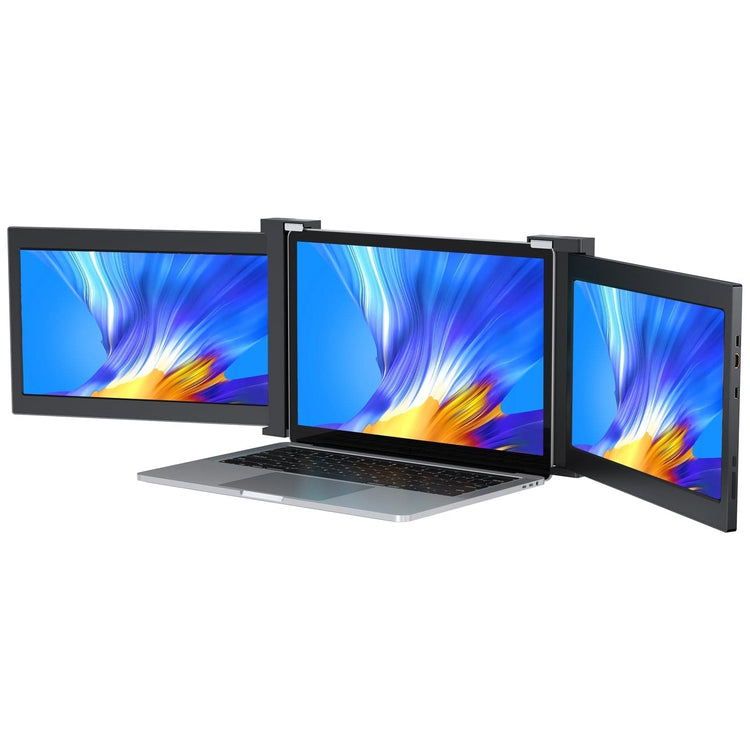 UStation Z 14 - Tri Screen Laptop Monitor Extender Triple Display PortableFrom €359.99
Screen size: 14 inches
Resolution: 1920 × 1080 (FHD)
Refresh rate: 60 HzPanel type: IPS
Display ratio: 16:9
Viewing angle: 178°
For more devices or other multi-screen laptops for greater productivity, see UPERFECT Z Tri-Screen device. This device is available in multiple combinations to get a dual-screen laptop that meets your needs. It features a portable workstation with three displays and multiple screen modes for laptops.
FAQs
Q1: Can I use any laptop for a dual monitor setup?
Not all laptops support a dual-monitor configuration. The capability depends on the laptop's graphics card and drivers. It is advisable to check your device's specifications and ensure it supports multi-screen functionality before attempting to set up a dual-monitor laptop.
Q2: Which ports do I need to connect a dual-screen laptop?
The required ports can vary depending on the laptop and monitor. Typical connection options include HDMI, DisplayPort, VGA, and DVI. Check the available ports on your laptop and monitors to ensure you have the correct cables and adapters.
Q3: Can I use monitors with different ports for a dual monitor laptop?
Yes, you can use monitors with different ports, but you may need adapters to harmonize the ports of the laptop and monitors. It is important to ensure that the ports are available on both the laptop and the monitor or can be made compatible using adapters.
Q4: Does a dual monitor setup work on every operating system?
Generally, most modern operating systems, including Windows 7, 8, 10, and Windows XP, support the dual-monitor feature. Make sure your operating system version supports the feature and make the necessary settings if applicable.
Q5: Can I customize the screen arrangement to my preferences?
Yes, after connecting the monitors, you can customize the screen arrangement to your preferences. In the display settings, you can set the position, orientation, and size of the monitors, as well as change the order in which they appear in your dual monitor laptop setup.

Leave a comment