

How can you cast any phone to a TV or monitor via Miracast?
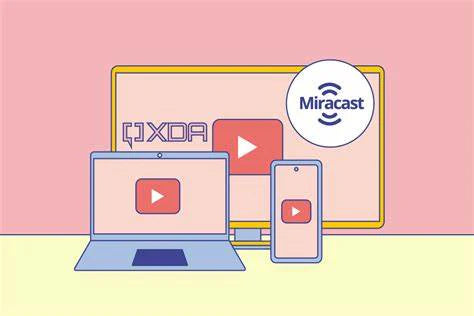
Miracast is a screen mirroring technology that allows you to mirror your smartphone screen on an adjacent display. With Miracast, you can mirror your smartphone screen to an adjacent display. In addition, you can use two Miracast-enabled devices to support screen mirroring. For example, you can view photos on a smartphone on a large-screen TV, share a laptop monitor in real time with a conference room projector, or watch live TV programs on a tablet. In this article, we'll cover some basics of this technology and provide tips and techniques for users. But first, let's look at what Miracast is and how it works.
Screen Mirroring and Miracast
Types of Screen Mirroring
- Wireless: Devices that do not require a cable can be used for this model. Wireless display technology is available in many different devices, including laptops and smartphones. Thanks to a wireless display, wireless streaming/casting is now possible. In other words, you can see what's on your tablet, smartphone, or laptop through your TV.
- Wired connection: This requires a cable to connect your device to the TV/monitor and use it as a media center. An HDMI cable transmits the screen content of the device to the TV. To connect a portable display, you can also use a USB-C cable to transmit the screen. However, there are other ways to connect a portable monitor, and a proper cable connection prevents signal loss.
What is Miracast?

Miracast is a technology specifically designed for screen mirroring, wirelessly connecting devices such as smartphones, tablets, or computers to TVs and other displays. The Wi-Fi Alliance has defined this protocol as the standard for wireless displays. It enables two devices to discover and connect to each other and mirror the screen of one to the other. In short, "Wi-Fi over HDMI" eliminates the need for a cable to connect your device to your display. As a peer-to-peer network, Miracast uses Wi-Fi Direct connections for wireless screencast transmission, similar to Bluetooth. Thanks to this technology, it is now possible to display content from devices such as smartphones or computers on TVs or other larger displays.
You may already be using this technology without realizing it, as a wide variety of newer products support it. To do so, you need to wirelessly connect your devices to share the screen between them. In addition, Miracast supports Full HD and 5.1-channel surround sound. Video data is transmitted over a wireless connection in H.264 format, the most common HD video encoding standard today. Miracast offers the advantage of being cross-platform, unlike competing protocols such as Apple's AirPlay or Chromecast's Google Cast.
How does Miracast work?
For Miracast to work, both the source (sender) and the display (receiver) must be directly connected. Thanks to Miracast, you have full control over where and how you watch your content. This is because Miracast uses Wi-Fi Direct (a direct connection method between devices) to transmit content faster than Bluetooth. With this technology, data can be transmitted up to ten times faster than with Bluetooth. This is crucial if you want your screen activity to be replicated on the other screen. When you send content from a mobile device or PC to a supported TV via Miracast, a wireless network is established between the two devices. Once the network connection is made, data is instantly and wirelessly transmitted from one device to the other. There is minimal performance delay when the two devices connect. Everything shown on one screen will also be shown on the other. Videos in Full HD or lower resolution can be transmitted with the H.264 codec and 5.1 surround sound.
Why should I use Miracast?
Miracast enables modern devices to connect wirelessly to screens and projectors. Thanks to Miracast's wireless display technology, cables are no longer necessary, so users no longer have to spend time searching for the right cable, plug, or input. Today, educators and presenters can move freely without being tied to their main screen, which leads to better collaboration.
"Say goodbye to tedious video conferences and presentation delays at work—welcome faster data transfer with minimal latency."
Understanding Miracast Technology
Difference between HDMI and Miracast
We look at the differences between HDMI and Miracast, as well as the best way to cast your iPhone screen to your TV via Miracast. Digital audio and video sources and displays can be connected via HDMI (High-Definition Multimedia Interface). To connect your smartphone to a TV and stream your phone to it, HDMI is a good idea. However, to take advantage of HDMI, your TV must be connected to your smartphone via an HDMI port. Miracast is a godsend in this situation. Essentially, Miracast is a wireless alternative to HDMI connections, as it performs the same function in a different way. You can use Miracast to mirror your smartphone screen if you want to watch a movie and share it with others via your TV. The video plays simultaneously on the smartphone screen and the TV screen.
|
Feature |
HDMI |
Miracast |
|
Connection Type |
Wired |
Wireless |
|
Setup |
Plug-and-play with cable |
Wireless setup, requires Miracast support |
|
Compatibility |
Broad (TVs, monitors, projectors, computers) |
Varies (Windows, Android; not supported by Apple) |
|
Quality |
High-quality, stable |
Dependent on Wi-Fi, possible latency |
|
Resolution |
8K (depending on HDMI version) |
1080p HD, 2K |
|
Best for |
Permanent or stationary setups |
Mobile or temporary use |
|
Audio Support |
Multiple channels, including advanced formats |
Basic audio, usually stereo |
Differences between Enterprise-Ready Miracast and Consumer-Grade Miracast
- Enterprise-Ready Miracast: This option automatically selects a dedicated Wi-Fi channel for Miracast to ensure excellent network quality and reliability in commercial environments. ScreenBeam introduced a Wi-Fi-certified Miracast display option for enterprise contexts in 2011. Software and hardware engineers and designers have worked tirelessly over the past eight years to improve the architecture and efficiency of ScreenBeam receivers so that enterprise customers can benefit from enterprise-ready Miracast.
- Consumer-Grade Miracast: Consumer-grade Miracast uses a Wi-Fi Direct connection to cast content from a mobile device to an HDTV in the room. This router was designed for simple Wi-Fi situations where the number of users and devices is limited and reliability and performance standards can be more easily met—it is ideal for home networks. This is not the case in enterprise environments where hundreds or even thousands of transmitters and receivers need to be supported. In congested Wi-Fi environments, a large enterprise expects devices to function flawlessly and adapt to each customer's individual Wi-Fi and I/O requirements. In addition, security and remote management must be ensured.
Difference between Miracast, Chromecast, and AirPlay
- Differences in compatible devices: Miracast supports Android smartphones and tablets, smart TVs, set-top boxes, etc. Chromecast supports Chromecast TV sticks, new TVs with Android TV systems and built-in Chromecast, etc. AirPlay requires Apple devices such as iPhones, iPads, and Apple TVs and is also supported by some third-party AirPlay-compatible devices.
- Technological Differences: Miracast uses Wi-Fi Direct for direct, wireless screen mirroring without an internet connection. Chromecast streams content via Wi-Fi from devices to TVs over the internet, allowing for connection separation during playback. AirPlay transmits content via Wi-Fi from Apple devices to Apple TV or other AirPlay-compatible devices. Both devices must be on the same network.
- Functional Differences: Miracast enables wireless screen mirroring between devices but does not support app-level streaming. Chromecast streams various content to a TV, allowing for separation of the source device's connection during playback, but does not mirror screens. AirPlay supports both screen mirroring and media streaming from Apple devices to Apple TV or other AirPlay-compatible devices.
How to Use Miracast?
Miracast-compatible Devices
As mentioned below, Android, Windows, smart TV, streaming, and other devices are compatible with Miracast. Android devices typically require Android 4.2 or higher; Windows devices require Windows 8.1 or higher; smart TVs, streaming devices, and other devices require built-in Miracast. Using the information below, you can determine if your device is Miracast-compatible.
|
Miracast Compatible Devices |
Brand |
Series |
Operating System/Version |
|
Android Devices |
Samsung |
Galaxy S-, Note-, and A-Series |
Android 4.2 and later |
|
|
Pixel Series |
||
|
LG |
G-Series, V-Series |
||
|
Huawei |
P-Series, Mate Series |
||
|
Xiaomi |
Mi Series, Redmi Series |
||
|
Windows Devices |
Microsoft |
Surface Pro, Surface Laptop Series |
Windows 8.1 and later |
|
Dell |
XPS Series, Inspiron Series |
||
|
HP |
Spectre Series, Envy Series, Pavilion Series |
||
|
Lenovo |
ThinkPad Series, Yoga Series |
||
|
Smart TVs |
LG |
Various Models |
Integrated Miracast support |
|
Samsung |
|||
|
Sony |
|||
|
Philips |
|||
|
Streaming Devices |
Microsoft |
Wireless Display Adapter |
|
|
Roku |
Various Models |
||
|
Other Devices |
Various |
Modern Projectors |
|
|
Dell, Acer |
Wireless Monitors |
What do you need to use Miracast?
Anyone who wants to cut out intermediaries and stream directly from their device must meet one requirement: both devices must support Miracast. Miracast requires a supported operating system, a Wi-Fi chipset, and a corresponding driver for the device to be mirrored. If your device does not meet all three criteria, you will need a Miracast adapter and a newer version of your operating system (more on this below). Many Miracast receivers, such as Actiontec's ScreenBeam kit, come with Miracast source adapters.
Windows 8.1 and Windows 10 support Miracast. In older Windows versions, Miracast can also be enabled with third-party software. Intel's open-source Wi-Fi Display application for any Linux operating system provides wireless display capabilities for Linux distributions. Instead of navigating this minefield, we recommend using a device with Miracast functionality pre-installed. The Samsung Galaxy S5 supported Miracast in both Android 5 and KitKat. However, starting with Android 6, Google removed native Miracast support. Chromecast is the only way to mirror the screen of Android devices newer than a few years old.
Miracast is not supported by Apple's OS X and iOS. Apple's AirPlay technology allows mirroring to Apple TV or other AirPlay-compatible devices to display content on a TV screen. However, the Wi-Fi technology that supported Miracast on older Intel-based laptops and tablets was discontinued in favor of Windows support (8/10) for newer laptops and tablets with 4th and 5th generation processors and Intel's 7260 wireless chip. Starting with AMD's third and fourth generation APUs, wireless display is also supported on laptops. Miracast is supported by many devices, but are you still wondering if yours does too? Miracast-certified devices can be found on product packaging and in product descriptions. Alternatively, you can follow the instructions in the "How to Use Miracast" section to determine if the feature is available in your device's settings.
How does Miracast work on Android?
You can access the shortcuts by swiping up or down on your smartphone screen. Select the Miracast version from the list of available screen mirroring apps. Wait for the phone screen to appear on your TV. Now you're ready to go. The following table shows the Miracast versions for common Android devices:
|
Android Devices |
Miracast Versions |
|
Samsung |
Smart View |
|
Huawei |
Multi-screen |
|
OPPO |
Multi-Screen Interaction |
|
Vivo |
Screen Mirroring |
Using Miracast on a Monitor
The wireless display standard (Miracast) was developed by the Wi-Fi Alliance. This technology allows the transfer of content from mobile devices, including screen and sound, to a Miracast receiver. Photos and videos can thus be displayed on a larger screen than that of the mobile device - completely without cables. To connect your smartphone to the monitor, use the Android adapter. Proceed as follows:
- Connect the UDongle to the HDMI port of your device and select the input source: HDMI.
- The setup page will automatically appear on the display device.
- Go to Miracast for smartphones (or "Wireless Display" for other devices) and select the SSL name for the UDongle.

Using Miracast on Windows 10
The Windows 10 Action Center provides a quick setting for screen mirroring. To open the Action Center:
- Click the speech bubble icon in the right corner of the taskbar.
- Click the "Connect" button below the screen to establish a connection.
The quick settings should be expanded if it doesn't appear by default. This menu should display a list of all available Miracast display devices.
- Start the connection by clicking on the device name.
- The display device may request a PIN for security or complete the process on the display device.
Mini-menus allow for one-time or continuous connection confirmation via Roku. After a few seconds, your projection device will mirror your PC's screen display or enhance its functionality. Choose between mirroring, extending the screen, or disabling the primary PC screen by selecting "Change projection pattern" in the Windows 10 menu. Note that if you use multiple monitors, the display on all monitors will be identical if you duplicate the PC screen.
Select "Second screen" if you only want to mirror your primary screen.
How to use Miracast on TV
Miracast allows you to stream videos from your smartphone to a TV or computer screen. This technology is also known as WiFi Display or Wireless LCD. The Wi-Fi Alliance developed the specification in 2012. Thanks to recent technological developments, multiple displays can now transmit the same image simultaneously. Miracast differs from Chromecast or Apple AirPlay (which are usually provided via a central network or cloud service), where only one device can display media or play content. Unlike Chromecast and Apple AirPlay, Miracast uses local Wi-Fi or Wi-Fi Direct to connect devices.
Screen mirroring on another PC
One of Miracast's best features is display extension. You may have noticed that among the Android devices listed above, there was also a desktop PC. This is a Miracast-enabled Windows 10 PC.
Projecting from one Windows 10 PC to another works similarly:
- Right-click on "Action Center" in the taskbar.
- Then select "Project" instead of "Connect".
- Click "Wireless Display" at the bottom of the list.
- Click "Project to this PC" at the bottom.
A window will open where you can configure how additional devices can project to your PC. After setup, you can close the window to keep your settings.
To project from one Windows 10 PC to another:
- Right-click on "Action Center" in the taskbar.
- Then select "Project" instead of "Connect".
- Select "Wireless Display" from the bottom of the list.
- Then select the PC you want to project to.
This computer becomes the 4K monitor for the PC you are projecting from.
Miracast Issues
Issue 1: It's only for screen mirroring
Fundamentally, Miracast is a fantastic concept. It was designed to be an open mobile display streaming technology that any manufacturer could use, enabling easy communication between devices. It would be fantastic to stroll into a hotel room and quickly mirror your device's screen to the TV, or give a presentation remotely at work without having to fuss with cables. Miracast promises to eliminate the need for HDMI cables. Even if Miracast worked perfectly, the underlying architecture would still be problematic in practice. While it's good to get rid of the HDMI cable, Miracast lacks the "intelligence" that competing protocols offer. Apple's AirPlay and Google's Chromecast can both mirror a device's screen – yes, Chromecast can also mirror your Windows screen and all open applications. However, they can be even smarter. For example, you could launch Netflix on your smartphone, find a movie to stream, and then press the Chromecast button.
Your smartphone then instructs Chromecast to display the video. Chromecast then connects to the internet and streams the video immediately. If you put your smartphone away while the movie is playing, it will go to sleep. With Miracast, your smartphone's screen remains on while the video is streaming as long as the Netflix movie is playing, which drains the battery. These protocols also allow you to display different screens on your device and your TV. For example, you can watch a Netflix movie on your smartphone and follow the replay there instead of on your TV. You can even stream video games with a separate protocol system on your smartphone and only see the virtual environment on your screen. With Miracast, you cannot use separate controls on your smartphone because your TV simply duplicates everything on your smartphone's display. Miracast can be a clever way to replace power cords with a Wi-Fi router, but it is difficult for many applications that users use AirPlay and Chromecast for in the living room.
Issue 2: Sometimes ineffective and unreliable
Miracast has a significant drawback. Miracast-enabled devices should communicate seamlessly with other Miracast-enabled devices. However, this is not always the case. Many support pages for devices like the Roku 3 provide a list of devices that have been tested to work with the receiver. With a good standard, this should not be necessary – after all, you shouldn't have to check if your smartphone or laptop model is compatible with your Wi-Fi router.
Both organized tests and attempts to use Miracast in practice repeatedly failed. We tried to enable Miracast on a Nexus 4 (Android 4.4.4) and a Surface Pro 2 (Windows 8.1) on a Roku 3 after enabling the latest screen sharing feature, but without success. Both devices are Roku-enabled, but they display the "Connecting" message before the time expires, without helpful status messages. Miracast uses Wi-Fi Direct, so this should not be a problem in our Wi-Fi network. This means that Miracast devices connect directly to each other, bypassing the normal Wi-Fi router and Wi-Fi, even if Wi-Fi is not available.
Issue 3: Difficulty identifying supported devices
It is also difficult to determine whether a particular device is compatible with the technology. Manufacturers often refer to their screen mirroring feature differently, even though it is based on Miracast. As a result, most people don't even know that their TV or smartphone supports Miracast and can be used for screen mirroring.
Miracast - FAQs
How does Miracast ensure the security of streamed content?
For premium content, Miracast supports HDCP (High-bandwidth Digital Content Protection). Protected media can only be transferred between HDCP-compatible devices (sources) and HDCP-compatible displays (sinks). The goal of this feature is to protect the digital rights of content owners while encouraging them to share their works.
How do I set up screen mirroring on a smartphone?
You can mirror your iPhone, iPod touch, or iPad to a TV screen with these steps.
- Use the Wi-Fi network of an AirPlay 2-enabled smart TV or Apple to connect your mobile devices.
- Swipe down from the top right corner of your device's screen to open Control Center.
- Enable screen mirroring.
- For information on your Apple TV or compatible AirPlay 2-enabled smart TV, refer to the manual.
How do I install Miracast on my smartphone?
To install Miracast on your smartphone, first check if your device supports the feature. Go to "Settings", then "Connected Devices", and look for the "Cast" option. Enable this option if available. If your phone does not have Miracast built-in, you can download a third-party app such as "Miracast - Wifi Display" from the Play Store. Also, make sure your phone is updated to the latest Android version. If all else fails, you can use alternative screencasting methods like Google Cast.
Is the Miracast app free?
Yes, of course. The free option with excellent features is the best thing about this program. Miracast is usually included for free with many devices. It is integrated into operating systems from Windows 8.1 onwards, as well as in certain Android devices, so users do not need to purchase or download a separate app to use it.
Types of Miracast Adapters and Receivers
Miracast adapters and Miracast receivers serve the same purpose: receiving and displaying Miracast signals. "Adapter" usually refers to external hardware, while "receiver" is a broader term that can refer to both internal and external devices. If your device (e.g., a monitor) does not have integrated Miracast support, you typically need to purchase a Miracast adapter to receive Miracast signals.

(Click on the image to purchase the Miracast adapter)
|
Aspect |
Miracast Adapter |
Miracast Receiver |
|
Definition |
External device for HDMI connection |
Device or module that receives Miracast signals |
|
Examples |
Microsoft Wireless Display Adapter, Actiontec ScreenBeam Mini2 |
Smart TVs with Miracast, Miracast projectors |
|
Type |
external hardware |
internal or external |
Miracast adapters are set up as follows: plug the HDMI adapter into any HDMI port on your monitor, TV, or projector, then plug the USB cable at the corner of the device into an outlet. These USB cables provide power to the adapter, not data transmission.
About UPERFECT
UPERFECT offers portable monitors for everyone with special display needs. At UPERFECT, we use various technologies to improve the lives of all users of our displays. Thanks to decades of experience and research that shape our business strategy and delivery methods, we offer high-quality customer service and high-quality designs at fair prices.
Conclusion
If you want to cast your iPhone to a TV or monitor, you can use AirPlay, a wireless display technology. Miracast is a method of wirelessly projecting content from your mobile device to a large screen. If you want to use your iPhone for screen mirroring on a device without AirPlay support, you may need a corresponding app from the Apple Store. However, Miracast also supports a variety of devices that are not part of the Apple product line, such as Android devices, Windows devices, or other smartphones.
We hope you found the answer to your questions in this post. If you have any questions or problems with screen mirroring from a smartphone to a TV, please contact us. Thank you for reading. We are always happy when our articles provide important information on this topic.

Leave a comment