

What is a Mac Mini? How is it used?
The Mac mini is exactly what its name suggests: a compact Mac. It's a powerful and compact desktop computer that can turn any display into a high-tech Mac. It was designed to be affordable and easily upgradable. It offers many of the same features as larger Macs but does not come with an integrated display.
If you're interested in learning everything there is to know about the Mac mini, then read on. In this guide, we'll discuss the Mac mini's features and specifications, including the steps and requirements for installation, connection, and configuration, how to connect a Mac mini to a monitor, and the many ways in which it stands out from a standard personal computer.
What is Mac Mini?

The Mac Mini is a small desktop computer from Apple. It is known for its compact size and low price, and is often used as a budget-friendly alternative to the larger Mac Pro or iMac computers. Unlike these models, the Mac Mini does not have a built-in display, keyboard, or mouse, so users must provide their own.
While this choice may seem unusual at first glance, the investment in the Mac mini is more versatile due to the fact that it is typically used to power another device. It is a popular choice for those who already have a monitor and other peripherals and want to save space and money by using a smaller computer. Users can connect their own peripherals and use the Mac mini as the central hub of their home entertainment system or home office setup.
Advantages of Mac Mini
The Mac mini truly excels when it comes to the benefits it offers users. Some of the advantages of a Mac mini include:
Compact Size
The Mac mini is significantly smaller than other Mac computers, making it a good option for users with limited desk space or who want to save space in their home office.
Affordable Price
The Mac mini is generally more affordable than other Mac computers, making it a good option for users who want to save money or have a limited budget.
Flexibility
The Mac mini does not have a built-in display, keyboard, or mouse, which gives users the flexibility to choose their own peripherals and customize their setup.
Easy Upgrade
The Mac mini is designed to be easily upgradable, allowing users to easily add more memory, storage, or other components to improve its performance.
Wide Range of Uses
The Mac mini can be used for a variety of tasks, including browsing the web, creating and editing documents, playing games, and more.
Compatibility with Other Apple Devices
The Mac mini comes with macOS, the same operating system used on other Mac computers, so you can enjoy a familiar and user-friendly interface. This also means it is compatible with other Apple devices such as iPhones and iPads, allowing for easy file transfers and seamless use of features like AirDrop and Continuity.
High-Performance Hardware
The Mac mini is equipped with powerful hardware, including fast processors, high-quality graphics, and solid-state storage, making it capable of running demanding applications and tasks.
When Was It Released?
The first Mac Mini was released in January 2005. It was the first Mac to come without a display, keyboard, or mouse. Since then, Apple has released several updates and new versions of the Mac Mini, with the latest coming out in November 2020.
The Mac Mini has undergone several changes and improvements over the years, including faster processors, more storage and memory, and new features like Thunderbolt ports and HDMI output. Despite these changes, the Mac Mini has remained true to its original design and remains a popular choice for those looking for a compact and affordable desktop computer.
How and What Needs to Be Connected?
Apple's small desktop has all the modern connectivity. On the back, there are two USB-C ports, two USB-A ports, a Gigabit Ethernet port, and an HDMI 2.0 port. Apple has carefully integrated USB-A ports for use with older devices that may not work with the newer USB-C standard.
The Mac mini offers both Bluetooth 5.0 and Wi-Fi 6 for network connectivity. It also offers the latest compatibility with Apple's official mouse and keyboard accessories, as these are all connected via Bluetooth. This also makes it ideal for use with various available portable UPERFECT screens such as the UFree portable multi-touch wireless monitor.
Can It Be Connected to UPERFECT Portable Screens?
Yes, the Mac Mini can be connected to the UPERFECT Portable screen. However, you need to follow a few steps to get your display working with your Mac Mini. Here are some steps you need to follow to connect the Mac Mini to your Uperfect portable monitor:
Step 1: Add Power
Connect the plug end of the power adapter to the Mac mini's docking port and the outlet end to the power source. The Mac mini's power button is located on the back.
Step 2: Examine the Cable Connection on Your Monitor.
The Mac Mini has built-in support for external displays connected via HDMI and DisplayPort, as well as for Apple monitors connected via DisplayPort or ThunderBolt.
Most Uperfect portable monitors are equipped with the necessary ports for improved connectivity, especially the HDMI and USB-C ports. This means you don't have to bother finding third-party adapters to connect your display to your Mac Mini.
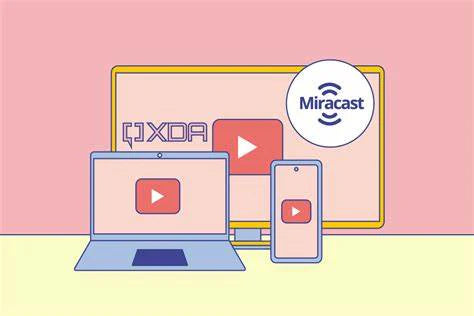
It is also possible to wirelessly connect a Mac mini to a monitor using technologies like AirPlay or Miracast. However, this requires additional hardware and software, such as an Apple TV or a Miracast-enabled adapter.
Step 3: Connect Your Monitor
You will need a special cable to connect your Mac mini to your display. The cables you need to connect your Mac mini to the TV depend on the ports on both devices. HDMI, DisplayPort, DVI, and VGA ports are just some of the most common ports you may find on your display.
To connect a Mac mini to a monitor via an HDMI cable, you need to use a cable that has an HDMI connector at one end and an HDMI connector at the other. You then need to connect the cable to the HDMI port on your Mac mini and the HDMI port on your monitor.
If you want to connect your monitor via other cable connections, you will definitely need the necessary display adapter. For example:
- If you want to connect your monitor with a VGA port, you will need an adapter that is suitable for USB-C to VGA Multiport. This way, both ports serve for each connection point from the Mac Mini and a VGA device.
- For a monitor with Mini DisplayPort or DisplayPort, you will need a USB-C to Mini DisplayPort or DisplayPort adapter. One side of the connector is connected to the Mac Mini via the DisplayPort adapter and the other to the device
- For monitors with DVI, you will need an adapter that connects from USB-C to DVI. The USB-C connects to the Mac Mini and the DVI part connects to the device with a DVI port.
Step 4: Adjust the Display Settings
Once the cable is connected, you may need to adjust the settings on your monitor to display the output from your Mac mini. Once the Mac Mini has started, you can adjust the screen resolution and resolution scaling to your monitor.
By default, the Mac Mini selects the highest screen resolution compatible with your monitor. However, to adjust the resolution to your needs, all you need to do is:
- Select "Apple" from the menu bar at the top of the screen.
- Click on the System Preferences menu item.
- Select the "Displays" tab.
- Click "Displays" again.
- Select "Scaled" to adjust the scaling for your display and select the desired resolution.
Is the Mac Mini Worth Buying?
It depends on what you expect from a computer and what you need it for. The Mac mini is a compact and affordable desktop computer that is ideal for people who want a Mac but don't want to spend a lot of money. It has received positive reviews for its performance and versatility.
It is also a good choice for people who do not have much space for a traditional desktop computer. The Mac mini has a small footprint and can be easily stored on a desk or shelf. It is also powerful enough to handle everyday tasks such as web browsing, checking emails, and using productivity software.
However, it may not be the best option for everyone. Before making a decision, it is important to consider your specific needs and compare the Mac mini with other computers. If you want to avoid buying additional adapters and dongles, you should consider a Uperferct portable monitor like the 17.3-inch 4K gaming monitor, as these can be connected easily.
Conclusion
Connecting a Mac mini to a Uperfect display is a straightforward and simple process that allows you to extend the capabilities of your Mac mini and use it as a full-fledged desktop computer. By following the steps outlined in this guide, you can easily connect your Mac mini and adjust the necessary settings on your monitor to display the output from your Mac mini.
Whether you use your Mac mini for work, play, or both: a Portable Monitor can significantly enhance your experience and help you get the most out of your Mac mini.

Leave a comment