

What is a stage manager?
Apple recently introduced a new feature in iPadOS 16 and macOS 13 Ventura known as Stage Manager; this article tells you everything you need to know about stage managers. From its combability, its limitation, and how this amazing feature works in general.
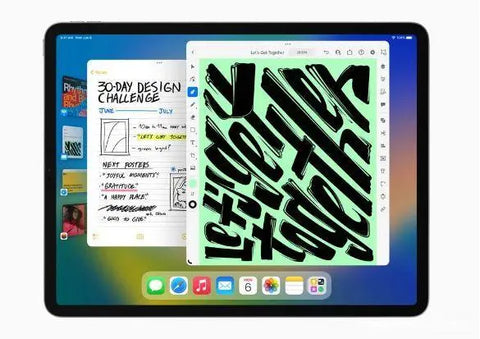
With Stage Manager, the apps most frequently used by the user are automatically stacked into windows bound to the left side of the screen. Each of the stacked groups of windows can be changed by the user to produce unique processes. With the help of a stage manager, users can:
- Set up your life with a clear and effective overview of all your commitments.
- Instantly create and send event invitations.
- Receive notifications when your tasks are due.
|
Table of Contents[Hide]
|
Combability of the Stage Manager
The Stage Manager app can be used on all MacBooks running macOS Ventura, as well as on all iPad models with M-series CPU, such as the 5th generation iPad Air, the 11-inch iPad Pro 2021, and the 12.9-inch iPad Pro 2021. Apple stated that the reason it only works on M-series CPU devices is that the Stage Manager app requires large internal memory, fast storage, and flexible external display I/O, all of which are present on these devices.
How it works
-
Mac
To start using Stage Manager on Mac, go to the right corner of your menu bar to activate the Control Center. Then, click on the icon showing the on/off switches. Next, you need to select "Stage Manager" by clicking the button next to the Focus switch. Then, open apps as usual from the Dock. You will see the apps you recently launched as a standalone window in the foreground. It would be helpful if you dragged open windows into active stacks or ran programs from the Dock to create unique workspaces. You can switch between specific workspaces by clicking on the grouped programs on the left side of the display.
-
iPad
Stage Manager provides multi-window functionality for iPads with the M1 chip, such as the fifth-generation iPad Air and the latest iPad Pro. With the latest Stage Manager system, iPad users can run a maximum of four overlapping and resizable windows on an iPad, unlike previous versions of iPadOS where users could only run two apps simultaneously. Additionally, iPadOS 16 supports external displays. External displays can now act as true secondary monitors, and users have the option to open four more windows on the display, for a total of eight windows open simultaneously. Previously, they could only be used for screen mirroring. Even better, users can now switch back and forth between windows on their iPad and on their external display. Furthermore, the keyboard model with the iPad requires you to remove the touchscreen, as it is not compatible with it. Also, only the USB-C port can be connected via a line, as Lightning does not support in-line communication.
To use Stage Manager on all supported iPad Air and iPad Pro models, swipe from the top right corner of your screen to reveal the Control Center. Then, tap the Stage Manager button, which is shown by a blank rectangular icon.
Stage Manager Pros
- Stage Manager provides a great channel for multitasking that is less complicated and has fewer limitations.
- The Stage Manager increases system-wide visibility and accessibility of dormant windows.
- Users can share four apps to quickly switch between common workflows.
Stage Manager Cons
- The default Stage Manager arrangement reduces screen space for active programs.
- Unlike macOS, program windows in iPadOS 16 cannot be resized indefinitely.
- The window snapping feature on the iPad makes referencing foreground data more difficult.
Conclusion:
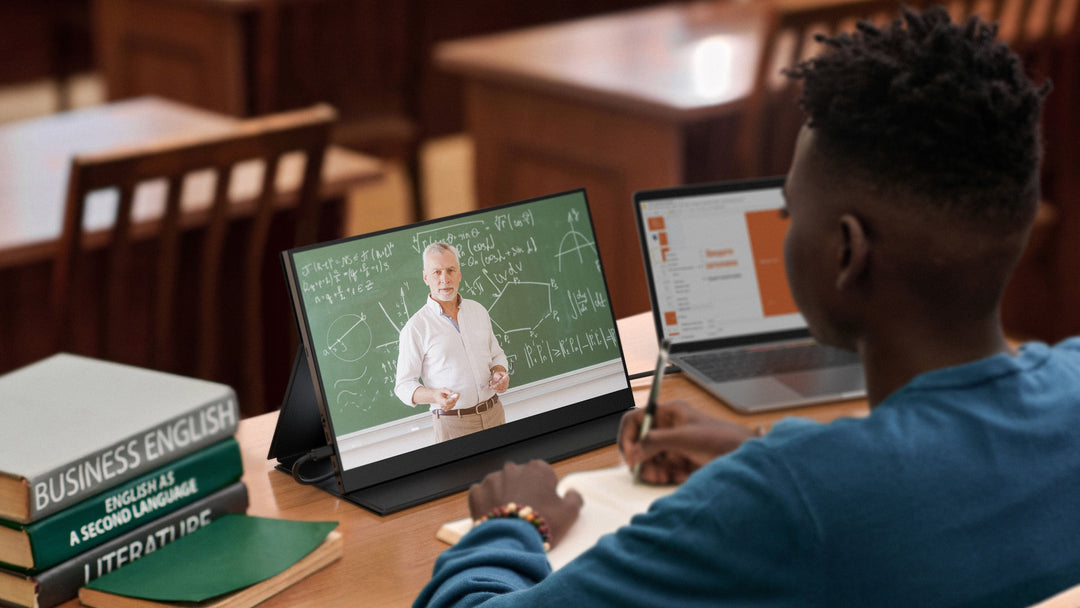
We hope you enjoyed this blog on stage management. We recommend the X Pro Lapdock 15.6" 4K Touchscreen to further maximize your experience using stage management applications on your iPad or MacBook. Because with a keyboard, you can maximize your work and increase the functional efficiency of the device. The 15.6-inch 4K touchscreen Huawei monitor X pro laptop docking station also comes with a USB-C to USB-C cable that allows you to connect your device to this touchscreen monitor. We hope you have enjoyed this blog on what a stage manager is.
FAQs
Q: Does a stage manager significantly contribute to productivity?
A: Yes, a stage manager greatly increases productivity. The stage manager app helps you manage your team and daily tasks. It has features like scheduling, managing your team, performance tracking, etc.
Q: What are the differences compared to DEX?
A: Stage Manager has some limitations compared to Samsung DEX—for example, there aren't as many features for managing files and folders yet—but if you're looking for something that will help you better organize your workflow, then Samsung DEX is your best option.
Q: Will it be a real productivity tool?
A: Yes, the stage manager will be a real productivity tool. It's great for keeping track of all your tasks and seeing what needs to be done next on a daily basis!
Q: How does the Mission Control app on Mac differ from Stage Manager?
A: While Stage Manager groups apps by workflow or app category, Mission Control on Mac groups programs by their respective windows. Think of Stage Manager as Mission Control with operable windows, rather than a static software launch.



Leave a comment