

How can I screen mirror any iPhone to a TV or monitor via Miracast?
Miracast is a screen mirroring technology that allows you to mirror your smartphone's screen to a nearby display. It's a technology that even Apple has incorporated Miracast into its new iPhones. Miracast technology allows you to mirror your smartphone's screen to an adjacent display. Furthermore, photos on a smartphone can be viewed on a large-screen television, laptop screens can be shared in real time with a conference room projector, and cable box programs can be watched live on a tablet. In this article, we'll cover some of the fundamentals of this technology, as well as some tips and techniques to help users. But first, let's look at what Miracast is and how it works.
What is Miracast?
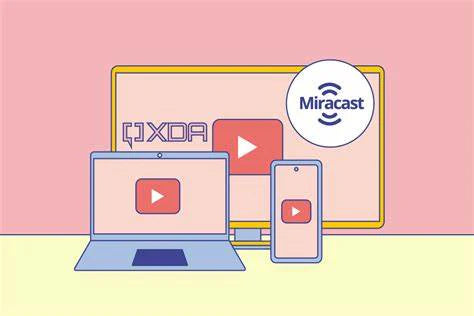
Miracast is a technology for wirelessly connecting computer monitors to televisions and other displays. The Wi-Fi Alliance defined this protocol as a wireless display standard. With it, two devices can be discovered, connected, and one's screen mirrored to the other. In other words, "Wi-Fi over HDMI" eliminates the need for a cable to connect your device to your display. As a peer-to-peer network, Miracast uses Wi-Fi Direct connections to wirelessly transmit screencasts, comparable to Bluetooth. Thanks to this technology, it is now possible to display content from multiple devices, such as a smartphone, a television, and more, on a computer screen.
There's a good chance you're using this technology without realizing it, as a wide range of new products can support it. To use it, we need to connect our devices wirelessly so that we can share the screen between them. This technology is finding its way into a variety of modern gadgets. Full HD and 5.1-channel surround sound also support Miracast. Miracast has the advantage of being a cross-platform standard, unlike competing protocols such as Apple's AirPlay or Google's Chromecast.
Miracast-Enabled Devices
Since the outbreak of technology, there are now more Miracast-enabled devices. Miracast is supported by the following devices as either a receiver or a sender (display).
|
· Computers running Windows 10 |
|
· The Linux distribution |
|
· Mobile devices running Android 4.2 and higher |
|
· Most Smart TVs |
|
· Monitors that communicate wirelessly |
|
· The Roku TVs |
|
· Fire TV by Amazon |
You're out of luck if you were hoping to use Windows 10's Miracast feature to cast your screen to a Chromecast. Miracast-enabled devices also cannot project from macOS or an iOS device's AirPlay. Consequently, the device must also support AirPlay. This is because AirPlay and Chromecast compete with Miracast. There will always be some branded products that refuse to support competing technologies when there is rivalry in the technology market.
How does iPhone Miracast work?
Both the source (sender) and the display (receiver) must be connected directly for Miracast to work. Thanks to Miracast, you have complete control over where and how you view your content. This is because Miracast uses Wi-Fi Direct (a direct connection method between devices) to transmit material faster than Bluetooth. With this technology, data can be sent up to ten times faster than with Bluetooth, which is crucial if you want what you're doing on one screen to be reflected on the other. When you send material from a mobile device or PC to a supported TV via Miracast, a wireless network is established between the two devices. The data is instantly and wirelessly transferred from one device to the other after the network connection is established. When the two gadgets are linked, there is no performance delay. Everything displayed on one screen is also displayed on the other. Full HD or lower resolution videos can be sent using the H.264 codec and 5.1 surround sound.
Types of screen mirroring
- Wireless - Devices that do not require a cable to operate can be used in this model. Wireless display technology is found in a variety of devices, including laptops and smartphones. Streaming/casting without cables is now possible thanks to a wireless display. In other words, you can use your TV to see what's on your tablet, phone, or laptop.
- Cable connection – Here you need a cable to connect your device to the TV and use it as a media center. An HDMI cable is used to transfer the device's display to a TV.
Why do I need to use Miracast?
Miracast allows today's latest devices to connect wirelessly to screens and projectors. Miracast's wireless display technology eliminates the need for cables and wires, saving users the time and effort of searching for the correct cable, plug, or input. Educators and presenters can now roam freely without being tethered to their main display, fostering a more collaborative environment.
"At work, say goodbye to terrible video conferences and presentation delays - welcome to data that flows faster and without latency."
Difference between HDMI and Miracast?
When streaming from an iPhone to a TV with AirPlay, no HDMI cable is required. Let's look at the differences between HDMI and Miracast, as well as the best way to cast your iPhone's screen to your TV via Miracast. HDMI, which stands for High-Definition Multimedia Interface, can connect digital audio and video sources as well as displays. To connect your smartphone to a TV and stream your iPhone to that TV, HDMI is a good idea. However, for HDMI to work, your TV must be connected to your iPhone via an HDMI connection. Meanwhile, Miracast is a godsend in this situation. Essentially, Miracast is a wireless alternative to HDMI connections, as it performs the same function in a different way. You can use Miracast to mirror your smartphone's screen if you're watching a movie and want to share it with others via your TV. The video will play simultaneously on both the smartphone and TV screens. We will discuss the many methods for streaming iPhone content to a TV with Miracast.
Differences between enterprise-grade Miracast & consumer-grade Miracast
- Enterprise-grade Miracast – This option automatically selects a dedicated Wi-Fi channel for Miracast to ensure excellent network quality and reliability in commercial deployments. A Wi-Fi Certified Miracast display option for enterprise contexts was introduced by ScreenBeam in 2011. The software and hardware engineers and designers have worked tirelessly for the past eight years to improve the architecture and efficiency of ScreenBeam receivers so that enterprise customers can take advantage of Miracast for business.
- Consumer-grade Miracast - Miracast for end users uses a wireless HDMI connection to transmit content from a mobile device to an HDTV in the room. This router was designed for simple Wi-Fi situations where the users and devices used are limited, and where reliability and performance standards can be more easily met - this router is best suited for home networks. This is not the case in business environments, where hundreds or even thousands of transmitters and receivers may need to be supported. In congested Wi-Fi environments, a large company expects devices to function flawlessly, and they must also be able to adapt to the unique Wi-Fi and I/O requirements of each client. Then it comes down to ensuring security and providing remote management.
Difference between Miracast, Chromecast, and Airplay
- Miracast Chromecast - Despite their similarities, these technologies are not the same. Everything on one screen can be displayed on another with Miracast. Chromecast is, however, more of a "receiver" than a device. A standard Wi-Fi protocol called Miracast is included in newer devices. Miracast uses technologies that most people already have.
- Advantage - For businesses, Miracast may be a preferred option because streaming a Windows screen with Miracast is easy. As an additional advantage over Chromecast, only the TV (connected to the dongle) acts as a receiver when using Miracast. It is also possible to use Miracast without an internet connection.
- Miracast vs. Airplay - Instead of Miracast, Apple uses its proprietary protocol called Airplay. A Mac, iPhone, or iPad can be used to stream videos from any of these devices to an Apple TV.
Advantage – As a cross-platform standard, Miracast has a great advantage. Unlike Apple AirPlay and Google Chromecast's proprietary protocols.
How to use Miracast on Monitor
The wireless display standard (Miracast) was developed by the Wi-Fi Alliance. Mirroring content from mobile devices, including the screen & the sound, to a Miracast receiver is enabled by this technology. A larger screen than that on the user's mobile device can be used to view their photos and videos, and no cables are required.
Here's how -How to use Miracast on Windows 10
Windows 10 "Action Center" has a quick setting for the screen mirroring feature. To open the "Action Center" –
- Click the speech bubble icon on the far right of the taskbar.
- There, click the "Connect" button under "Screen."
There should be an option to expand the quick settings if you don't see them by default. This menu should show a list of all accessible Miracast display devices.
- Start the connection by clicking on the device name.
- The display device may ask for a PIN or complete the process on the display device to ensure security.
Mini menus are available to confirm the connection once or continuously with Roku. After a few seconds, your projection device would either mirror or enhance the functionality of your PC. Choose between mirroring, screen extension, or disabling the primary PC display when you select "Change projection patterns" in your Windows 10 Connect menu. Note that when using more than one monitor, the display on each monitor will be identical if you duplicate the PC display.
Select "Second screen" if you only want to mirror your primary screen).
How do I use Miracast on TV?
You can use Miracast to stream videos from your smartphone to a TV or computer monitor using this screen mirroring technology. It is also known as WiFi Display or Wireless LCD. The Wi-Fi Alliance developed it as a specification in 2013. As a result of recent technological developments, many displays can now send the same image simultaneously. It is not like Chromecast or Apple Airplay, which only allow one device to display media or play the content. Unlike Chromecast and Apple AirPlay, Miracast uses the local wireless or Wi-Fi Direct network to connect devices.
How do I use Miracast on an iPhone (iOS)?
Occasionally, you may want to watch a video on a bigger screen instead of your iPhone. Miracast's screen mirroring technology can be used to wirelessly transmit videos and images to a larger display if you do this from iOS 8, you can use Miracast to remotely mirror your iPhone's screen. If you're using an iPhone with Miracast, you can wirelessly stream material such as pictures and videos from your smartphone or tablet to a TV or other display device. This means that you can instantly stream photos, movies, and music from your smartphone to any Apple TV via AirPlay.
How can I mirror my screen to another PC?
One of Miracast's coolest uses is as an extended display device. You may have noticed that among the Android devices listed above, there was a desktop PC. This is a Miracast-enabled Windows 10 PC.
The method for projecting from one Windows 10 PC to another computer is similar
- Right-click "Action Center" on the taskbar.
- Next, select "Project" instead of "Connect."
- Click "Wireless Display" at the bottom of the list.
- Click "Project to this PC" at the bottom.
A window will appear, allowing you to configure how additional devices can project to your PC. After setup, you can close the window to keep your settings active.
Now, projecting from one Windows 10 PC to another:
- Right-click "Action Center" on the taskbar.
- Next, select "Project" instead of "Connect."
- Select the end of the list: "Wireless Display"
- Then, select the PC you wish to project to
This computer becomes a 4K monitor for the PC you are projecting from.
What do you need before using Miracast?
For those who want to cut out intermediaries and stream directly from their devices, there's one condition: both devices must support the iPhone Miracast. Miracast requires a supported operating system, wireless chipset, and support driver for the device you're trying to mirror. You'll need a Miracast adapter and a newer version of your operating system if your device doesn't meet all three of those criteria (more on that below). Many Miracast receivers, such as Actiontec's ScreenBeam Kit, come with Miracast source adapters.
Regarding operating systems, Windows 8.1 & Windows 10 both support Miracast. In older versions of Windows, third-party software can be used to enable Miracast. Intel's open-source Wi-Fi display application for any Linux operating system provides wireless display capabilities for Linux distributions. Rather than wade through that minefield, we advise using a device that comes pre-installed with Miracast capability. Apple's iPhone 5 and Samsung's Galaxy S5 both supported Miracast in Android 5 and KitKat, respectively. However, in Android 6 and above, Google removed native Miracast support. Chromecast is the only way to mirror the screen of an Android device newer than a few years old.
Miracast is not supported by Apple's OS X or iOS. With Apple's AirPlay technology, the company has instead opted for an Apple TV device to remotely mirror output to a television screen. The Wi-Fi technology that enabled Miracast on older Intel-based laptops & tablets has been phased out in favor of Windows (8/10) support for newer laptops & tablets featuring 4th and 5th generation processors and Intel's 7260 Wireless chip. Beginning with AMD's third and fourth generation APUs, wireless display is supported in laptops. Miracast is supported by many devices, but are you still wondering if yours does? Miracast-certified devices can be found in product packaging and descriptions, or you can follow the instructions in the "How to Use Miracast" section to determine if the feature is available in your device's settings menu.
Types of Miracast Adapters and Receivers
You can choose an Actiontec ScreenBeam Mini2 Receiver or Microsoft's Wireless Display Adapter, both of which are Miracast receiver dongles you can buy right now. The purchasing decision is primarily a matter of personal taste. If you can find one, we recommend using a first-party adapter. Microsoft's adapter is the best option if you want to beam a display from a Microsoft Surface Pro. If you have to deal with devices from various manufacturers, it may be more difficult for you to troubleshoot any issues that arise. Any of the above adapters can be set up as follows: plug the HDMI adapter into any HDMI port on your monitor, television, or projector, and then plug the USB cable from the corner of the device into either the TV or another outlet. The purpose of these USB cables is to power the adapter, not to transfer data.
Miracast's Problem
Problem 1: It's only for screen mirroring
In principle, Miracast is a fantastic concept. It was supposed to be an open technology for mobile display streaming that any manufacturer could use, allowing devices to easily communicate with each other. It would be fantastic to stroll into a hotel room and quickly mirror your device's screen to its TV, or walk into a workplace and remotely connect to a TV to give a presentation without having to deal with cables. Miracast promises to eliminate the need for an HDMI cable. Even if Miracast worked flawlessly, the underlying architecture would still be a problem in practice. While getting rid of the HDMI cable is good, Miracast lacks the "intelligence" that competing protocols provide. Apple's AirPlay and Google's Chromecast can both mirror a device's screen—yes, Chromecast can also mirror your Windows desktop and any open applications. However, they can be smarter. For example, you could use your phone to launch Netflix, find a movie you'd like to stream, and then touch the Chromecast button.
Your smartphone would then instruct the Chromecast to display the video, which the Chromecast would do by connecting to the internet and streaming it instantly. The phone would then go to sleep if you put it down while the movie streamed. With Miracast, your phone's screen would have to remain on while the video streamed for as long as the Netflix movie lasted, draining its battery. These protocols also allow you to show something different on your device's screen and your television. So you could watch a Netflix movie on your phone and check playback there instead of on your TV. You could even stream video games to your smartphone using a specific system of protocols and only see the virtual environment on your screen. With Miracast, you can't have different controls on your phone because your TV simply duplicates everything on your phone's display. Miracast may be a clever way to replace power cords with a Wi-Fi router, but it's difficult for many things people use AirPlay and Chromecast for in their living rooms.
Problem 2: It is sometimes ineffective and unreliable
Miracast has one major flaw. Miracast-certified devices should be able to communicate with other Miracast-certified devices with ease. However, this is not always the case. Many support pages for devices such as the Roku 3 include a list of gadgets that have been tested to work with the receiver. This shouldn't be necessary if a good standard exists—after all, you shouldn't have to check if your phone or laptop model is compatible with your Wi-Fi router.
Both organized tests and people attempting to use Miracast in the real world have repeatedly failed to get it to work. We tried to get a Nexus 4 Android (4.4.4 system) & a Surface Pro 2 Windows (version 8.1) to work with Miracast on a Roku 3 after enabling the latest screen sharing feature, but were unsuccessful. Both are Roku-approved devices, yet all sit on a "connecting" message before timing out with no helpful status messages. Miracast is supposed to use Wi-Fi Direct, so this shouldn't be an issue with our Wi-Fi network. This means Miracast devices should connect directly to each other, bypassing the normal Wi-Fi router and Wi-Fi network, even if no Wi-Fi network is available.
Problem 3: Difficulty identifying supported devices
It's also difficult to tell if a specific device is compatible with the technology. Manufacturers commonly refer to their screen mirroring feature by a different name, even though it's based on Miracast. As a result, most people don't even know that their TV or phone supports Miracast & can be used to mirror their screen.
About UPERFECT
UPERFECT provides portable monitors for those with unique display requirements. At UPERFECT, we use multiple technologies to improve the lives of all those who interact with our displays. Thanks to decades of experience and research at the heart of our business strategy and delivery method, we are happy to offer high-quality customer service and designs at reasonable costs.
Conclusion
If you ever want to cast your iPhone to a TV or monitor, you can use Miracast, a wireless display technology. Miracast is a method for wirelessly projecting content from your mobile device to a large screen. Thanks to Apple, you can use Miracast on your smartphone. However, if you are running an earlier and outdated version of iOS, you can use AirPlay to mirror your screen.
We hope you found the answer you were looking for in this post. Please contact us if you have any additional questions or concerns regarding iPhone screen mirroring to a TV. Thank you for taking the time to read this; we are always thrilled that one of our articles can provide important information on a topic like this at any time.
Frequently Asked Questions
Q1: How does Miracast ensure the security of streamed content?
For premium material, Miracast supports High-Bandwidth Digital Content Protection (H.264 DCP) (HDCP). Protected media can only be sent between HDCP-compatible devices (sources) and HDCP-compatible displays (devices) (sinks). The goal of this feature is to protect content owners' digital rights while also encouraging them to share their work.
Q2: How do I set up screen mirroring on a smartphone?
You can mirror your iPhone, iPod touch, or iPad to a television screen using these steps.
- Use the Wi-Fi network as an AirPlay 2-enabled smart TV or Apple to connect your mobile devices
- Open the taskbar
- Enable screen mirroring
- Your Apple TV or compatible smart TV with AirPlay 2 support can be found in the manual
Q3: How do I install Miracast on my smartphone?
You can access the shortcut settings by swiping up or down on the smartphone screen (swipe down the screen). Choose Mirascreen XXX from the list of available screen mirroring apps. When the phone screen appears on your TV, wait patiently. You're ready to go.
Q4: Is the iPhone 12 compatible with Miracast?
Unlike other TV manufacturers, Apple does not support Miracast. To use screen mirroring on Sony or Samsung devices, Miracast technology must be installed on your Apple device, and neither Sony nor Samsung have AirPlay.
Q5: Is the Miracast app free?
Yes, of course. Having a free option with excellent features is the best part of this program. With this Android app, web-based phone/tablet management is now possible. Transferring data from your smartphone to a desktop or Mac is also possible with this program, and it doesn't just get dumped.

Leave a comment