

What is Samsung DeX and how is it used?
Samsung is a widely popular brand, most notably known for producing high-quality Android devices. What you might not know about Samsung is that every year, they spend billions of dollars on research and development to develop technologies that make our lives easier. The company's latest innovation is Samsung Dex and can literally turn your smartphone into a computer. With it, you can connect your Samsung phone to an external monitor for a desktop-like experience.
In this post, we will provide you with a detailed introduction to Samsung Dex and explain how you can use it. Continue reading the article to learn everything about this revolutionary technology!

|
Table of Contents[Hide]
|
What is Samsung Dex?
Samsung DEX is a new take on mobile computing, which is developed by the Samsung company. It lets you carry out computer-level work without needing a computer. Basically, DeX turns your Samsung phone into a processor and allows you to get things done from an external monitor that is only possible on a laptop or desktop.
The name DEX comes from "Desktop Experience." It was first introduced on Samsung Galaxy S8 and S8+ smartphones. Now, you can find this revolutionary feature in all ascending Galaxy flagship devices. Some of the Galaxy A series phones also feature it. Among Samsung's tablets, almost all Galaxy Tabs from S4 to S7+ come with Dex.
When Dex was first released in 2017, it required a docking station called the DeX Station, which featured USB-C, HDMI, USB, and Ethernet ports. Later, Samsung bought the Dex HDMI adapter, cable, and multiport adapter, making the dock station obsolete. This allows you to use Dex more flexibly and continue using the phone while the Dex is operational. The phone can also be used as a touchpad for browsing the desktop mode.
Even more interestingly, you can now launch Dex on any physical computer directly using only the USB-C cable on the Note 10 and other ascending Samsung smartphones.

Samsung Dex Interface
The Samsung Dex interface is well-optimized to provide you with a pleasant feel and ease of use. It is identical to standard PC operating systems like Windows, Linux, or iOS but is based on Android. You can navigate through the interface by connecting a mouse or by using your phone as a touchpad. Like the usual PC interfaces, it has an interactive scroll bar, context menu, horizontal navigation, keyboard shortcuts, etc.
You can also drag and drop files, select text, open new windows, switch between windows, and resize windows. Moreover, all the core Samsung apps are now optimized for Dex, which means you can enjoy enhanced performance while using the browser, email, gallery, etc. And if you are not satisfied with the Dex interface, you can always use an emulator to make the environment more familiar.
How Do I Use Samsung Dex?
Setting up the Samsung Dex is quite simple. You just have to ensure you have the right accessories for the setup. In the following, we will tell you about the accessories you need and walk you through the setup steps you need to follow.
Samsung Dex Requirements
First, let us consider the requirements of the DEX setup.
- Smartphone: As discussed earlier, Samsung Dex is available for the latest Galaxy S series phone, starting from S9 to S21. It is also available for Note Series, starting from Note 8 to Note 20 Ultra. You can also use it in Z fold series phones and Samsung Tab S4, S5e, S6, S7 etc.
- Monitor: The good news is you can utilize any full HD, HD+, or WQHD monitor with HDMI support for setting up Samsung Dex. You can even use a TV or projector for this purpose. Now you will also find specialized products like Portable Monitors and LapDocks, exclusively designed for Dex.
- Peripherals: Earlier, the Samsung docking station was required for setting up Dex. But now, you can utilize any supported USB hub as well as the Dex HDMI adapter, Dex cable, or Dex multiport adapter. If you want to connect a mouse and keyboard, make sure that you have got the Dex multiport adapter or a supported USB hub with the required ports.

Setting Up Your Workstation With Samsung Dex
Finally, here are the steps you need to follow to set up Samsung Dex:
- Step 1 Connect your monitor to the power source. If you are using Dex multiport adapter, Dex Station, or USB Hub, connect the monitor to the adapter/Dex station or Hub with a standard HDMI cable. If you are using the Dex cable, simply attach the male connector of the port to the monitor's HDMI port.
- Step 2: Connect the smartphone to the adapter or Hub with the USB C cable. If you are using Dex Station, simply put the phone in its compartment. For the Dex cable, connect its other end to the phone’s charging port. It should boot up the monitor with the Samsung Dex logo.
- Step 3 Now, connect the mouse and keyboard if needed. If you are using a Dex cable, you will require Bluetooth Mouse and Keyboard. Simply pair them with your phone. You can use a wired mouse and keyboard for the USB hub, multiport, or Dex Station.
If you have connected the phone via a Dex cable, make sure your phone continues to charge with a wireless charger. Since Dex needs more computing power, the battery will drain quickly.
Using Dex on Smart TV
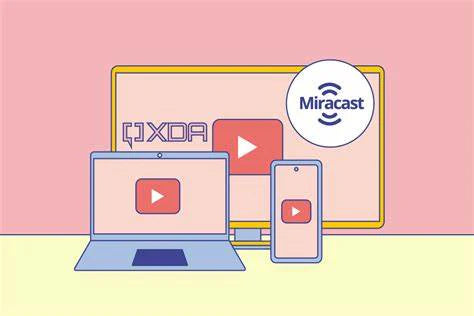
You can also use Dex on a Smart TV if it has Miracast. With some of the latest Galaxy devices, you can wirelessly use Dex by connecting to a Miracast-enabled TV or monitor. Here's how to set up wireless Dex via Miracast:
- First, turn on your TV and open the screen mirroring mode.
- Next, pull down the quick settings bar of your phone and click on Dex.
- Now pick the monitor on which you want to cast.
- Confirm the choice from the next window, and you will see Dex loading on TV.
That's it. Now you can use your phone as a touchpad to navigate through the screen. You can also connect a mouse and keyboard to the TV to work productively.
Using Dex on PC
You can also use Dex on a PC without peripherals. Here's how:
- First, download and install Dex for PC on your Windows or Mac.
- Now connect your phone with the PC through the USB C charging cable.
- Dex should automatically boot up. You will see the Dex interface on PC.
That's it. You can use Dex in a floating window next to the PC application or in full-screen mode.
Using Dex on LapDock
You can also use Dex on a LapDock to take full advantage of Dex's portability:
- Turn on your LapDock. Make sure it's fully charged.
- Connect your galaxy phone with the LapDock with USB-C to USB-C cable. Find the right USB-C port on the LapDock because sometimes there are multiple Type C port on the dock for different use, such us charing and OTG.
- Dex should activate and you will see Dex animation logo on the docking station.
Here's a video as an example of connecting with UPERFECT X Pro:
Conclusion
Samsung Dex can be the new way to experience Android on your desktop. With just a cable, you can connect your Samsung phone to an external monitor and use it like a PC. This can be handy for maintaining your productivity even when you are not at your workstation. With a Samsung Dex-supported phone, you are literally carrying a computer in your pocket.

Leave a comment