

Does Huawei have a DeX mode?
Tech enthusiasts have longed for that one gadget that could bridge the gap between PC and smartphone. Multinational companies like Samsung and Motorola have already released their DeX (Desktop Experience) solutions. But do we have a DeX solution from Huawei? The answer is yes, we do, and it is known as Huawei Easy Projection. Based on their EMUI or Emotion UI, Huawei Easy Projection appears in most of its devices, including Mate and Honor.

|
Table of Contents [Hide] |
Why should you use DeX mode?
Experienced tech freaks have already anticipated DeX software solutions like Huawei Easy Projection and Samsung DeX. But ordinary people who purchase Huawei's mobile gadgets may not be aware of the DeX mode and its benefits. If you look at a random person's smartphone, you will find all sorts of content, including photos, games, music, etc.
While a phone is portable and can store tons of content, it has a smaller screen than a PC. Transferring your smartphone's desktop to a larger external display allows you to enjoy the experience and not strain your eyes. With Huawei Easy Projection technology, you can view your phone's content on a larger screen. If you don't have a PC or laptop to do a task, use Easy Projection and your TV screen instead.
Huawei Easy Projection - What's Inside?
User Interface
Anyone who has experienced Huawei Easy Projection loves the user interface so much. The Android-based Easy Projection UI is so great that everyone would first guess that you are using a Windows 10 PC. It displays your phone's desktop icons so well. In addition, the UI includes a menu icon, and if you click it, you can view the app menu. The same taskbar appears on your PC or laptop when you use Easy Projection mode.
Navigation buttons and the notification panel are in the right corner of the user interface.
Another thing about this user interface is that it allows the user to multiply and resize windows. You can perform drag-and-drop tasks and change Wi-Fi and Bluetooth settings from the navigation pane. In the left corner, the user interface displays a start button.
Hardware Requirements
What do you need to use the simple projection mode? First, you need a Huawei phone released after 2017, including the Honor and Mate series. These phones have a built-in Easy Projection PC mode. Another requirement is an external screen such as your PC monitor or TV screen.
Make sure your PC monitor is wirelessly compatible if you plan to connect your phone to it wirelessly. A video adapter such as HDMI or USB-C to VGA is a must. If you don't have it, make sure you have a docking station or a multi-port adapter.
Supported Apps
It is possible to use most Android apps on the Huawei Easy Projection. Since apps have unique structures, some may not work efficiently. Easy Projection loads most apps in a rotated window so that they can adapt to a full-screen mode.
Overall Performance
If you want to surf smoothly, Huawei Easy Projection is ideal. But if you need it for work, it may not be the best choice. It only offers standard apps to boost your productivity. Others will not work. Therefore, graphic designers and programmers must not rely on this DeX software to do their work.
How do I connect?
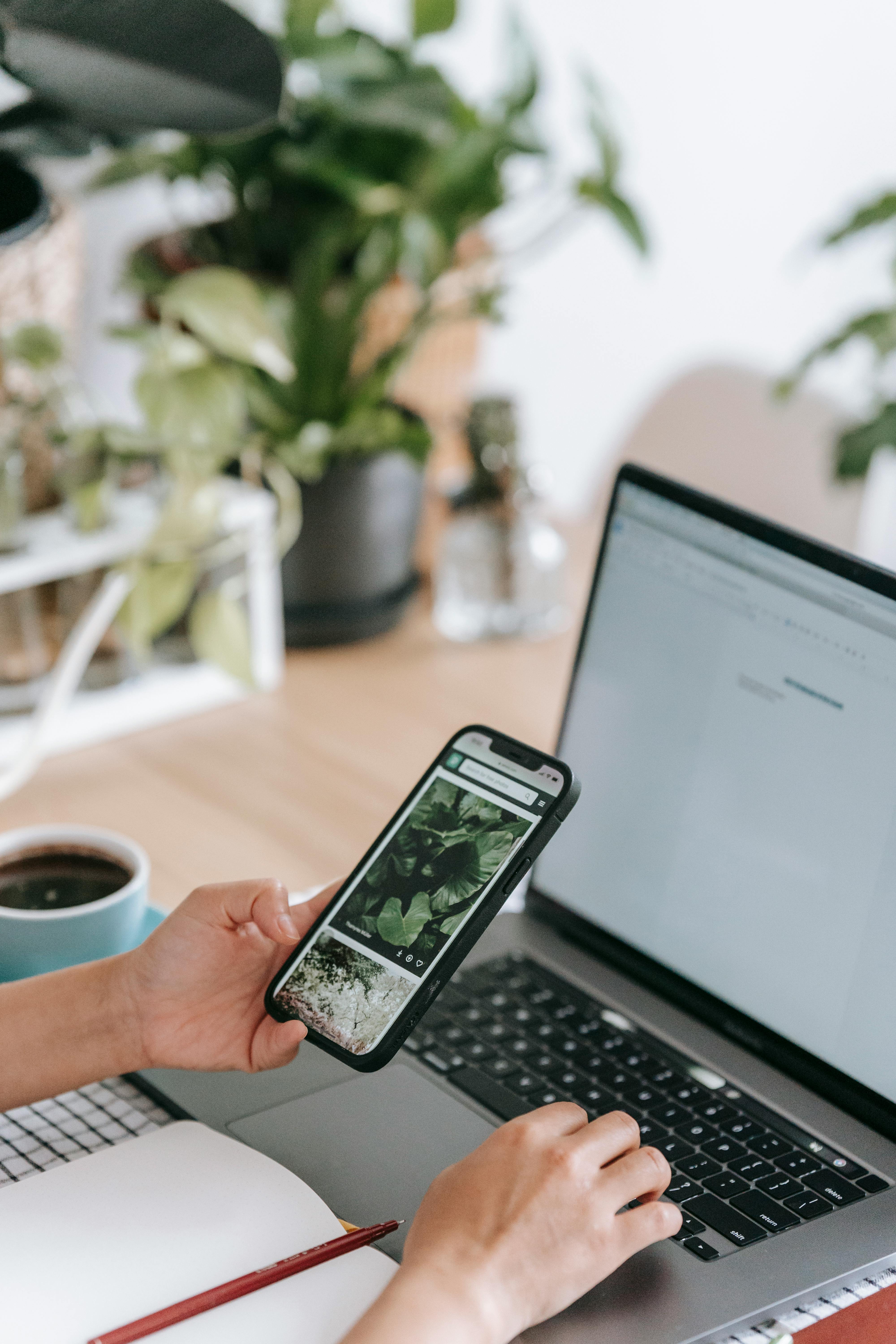
Connecting your PC or TV screen to your Huawei phone is very simple. First, you can make a wired connection or try a wireless connection. You need USB-C and a video adapter to make a wired connection. A multifunction adapter is an excellent choice as you can also use it for charging. Steps to do are:
- Make sure your USB-C adapter cable is Type-C on one end and HDMI, DVI, VGA, DP, or MiniDP on the other end. Check the ports on your external display before purchasing this cable.
- You can use a DeX dock if you want to connect many things, including your keyboard, mouse, gaming console, etc.
To establish a wireless connection, make sure your external display is wirelessly compatible. This is because Huawei phones with Easy Projection mode can establish a wireless connection. A wireless connection seems simpler as there are no cables. When you connect wirelessly, you can play games, browse, and watch your favorite TV shows. Steps include:
- You need to connect the phone to a TV or TV box. So, turn on the mirroring option on your TV screen if it's not already active.
- Next, enable Wi-Fi on your phone. Go to settings, select More Connections, and then touch Easy Projection.
Easy Projection Modes
Here you only get two connection modes. These include desktop mode and phone mode.
- Phone Mode
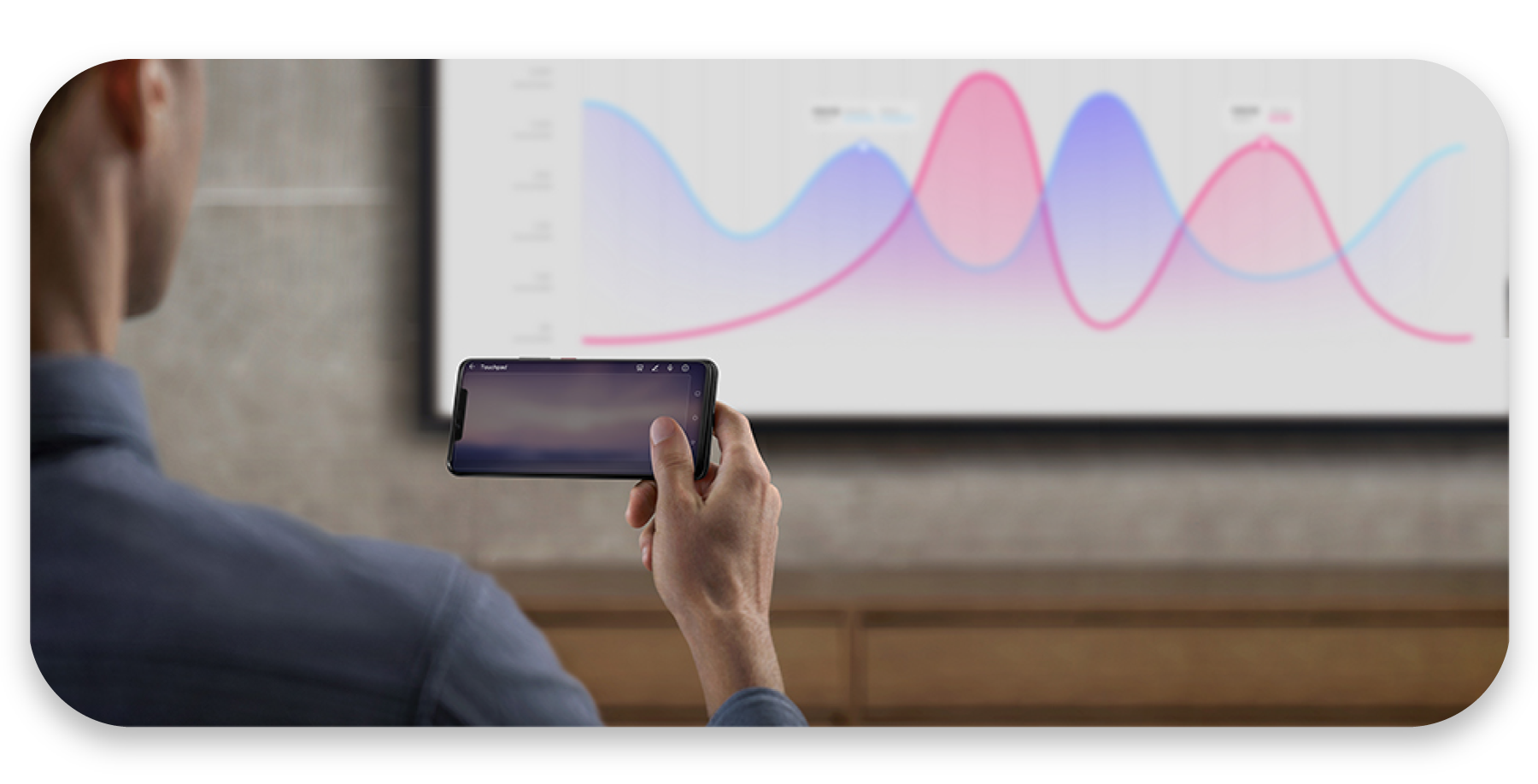
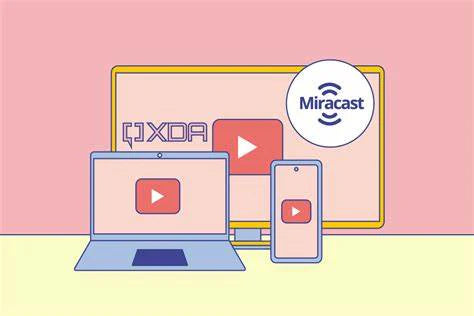
In this mode, you only see what you are doing on the phone. Therefore, the larger display shows the activities you are currently performing on your phone. If you want to project any media file, such as a photo, music track, or video clip, you can do so in this mode. If you are using a Miracast, DLNA, or Huawei Mirror compatible monitor, try phone mode.
- Desktop Mode
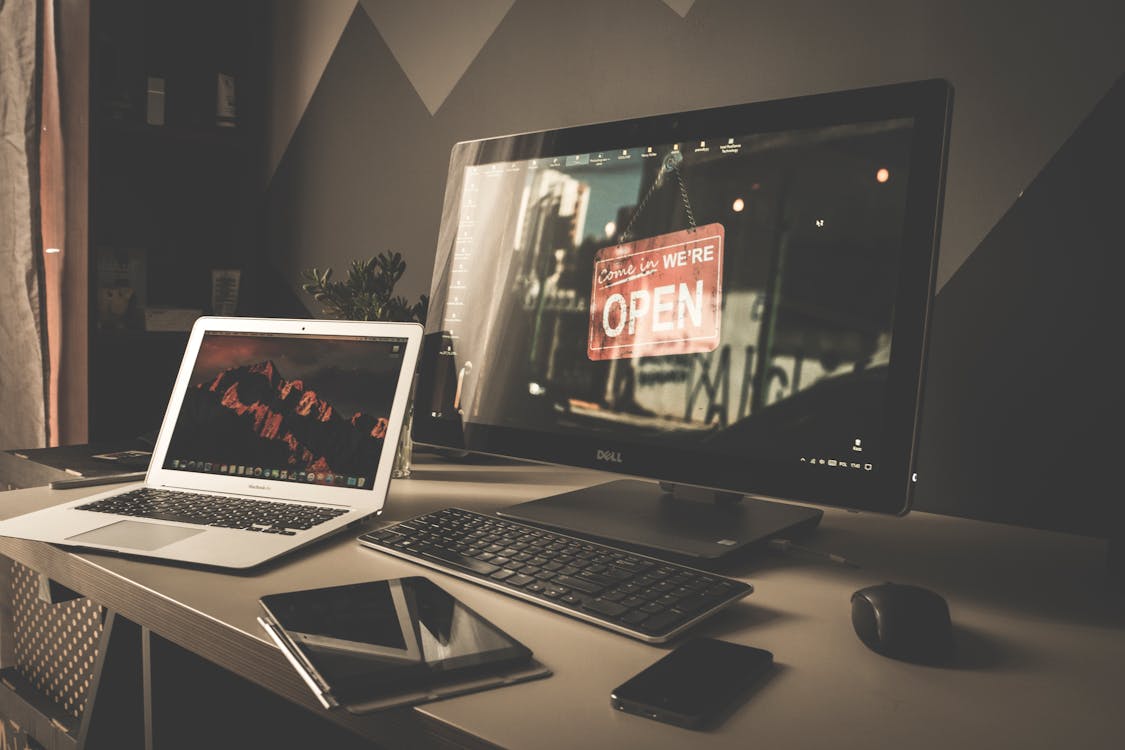
Wait until you see your phone's desktop on the external display. On your Huawei smartphone, switch to Projection Mode and touch Desktop Mode. Once you are in Desktop Mode, you can work on your files as if you were using a computer. Since the phone and the larger screen operate autonomously, you can respond to chats, calls, and messages while editing a document.
A red dot appears in the notification area when a new message arrives. In desktop mode, you can open multiple windows simultaneously for multitasking by clicking on the multi-window display. The file management feature helps you create, edit, and rename files and folders. You can also use it to save files to the desktop.
With quick search, you can search for any documents or apps. Type text in the search box next to the Start button. The Quick App Projection feature on your phone shows you an app's projection options before opening it on your external display. Suppose you don't have a physical keyboard and mouse.
You can execute various commands using your smartphone's touchpad. With an on-screen keyboard, you can type as if you were using the physical keyboard. To activate, touch the text input field on your external display.
Conclusion
With Huawei Easy Projection, you can mirror phone content to a larger screen. Connecting is easy as you only need to choose between wired and wireless options. Easy Projection offers only two modes. Choose desktop mode for more productive work like typing and editing documents. Opt for phone mode if you can connect wirelessly to stream a movie or watch an online video.

Leave a comment